- GNOME (57%, 564 Votes)
- KDE (26%, 251 Votes)
- Xfce (7%, 66 Votes)
- Others (4%, 42 Votes)
- Fluxbox (3%, 29 Votes)
- Openbox (2%, 18 Votes)
- Enlightenment (1%, 12 Votes)

Showing posts with label Places.Desktop. Show all posts
Showing posts with label Places.Desktop. Show all posts
Thursday, September 25, 2008
Linuxhaxor poll
Linuxhaxor.net is a fairly non-partisan Linux site. It even links to Windows and Mac "haxor" sites in the main menu. That's why I think the results of its desktop poll are probably a reasonable sample of Linux desktops. The results as of right now are:


Sunday, August 17, 2008
Google should just take the Gnome online desktop and run with it

First plot line: gOS
There's a lot of buzz about gOS 3.0 out there. gOS is one of those distros that just rocketed to fame in its first five minutes, and since it's released about every four months, it stays in the news. Back in November, 2007 when it was first let onto the scene, I tried it out and wrote about it. It had too many usability bugs at that point.The "g" in the first couple of weeks was speculated to mean Google, which of course it didn't (trademark issues and all). The developer came out after some contemplation and said it stood for "good." Fine. It was still the Google desktop and nothing could change that. It wasn't, however, particularly integrated or, more importantly, "good."

Second plot line: Gnome Online Desktop
Fedora has a project with Gnome to create an online desktop. Gnome has its online profile page. I looked at it back in May and though it was cool, but again needed more integration. I think I came off as whiny and as the kind of guy who orders around developers. It wasn't intended to be that way. Anyway, the basic idea of the online desktop is that you sign into Gnome using your online profile and your connection details are loaded, connecting you to your IM and e-mail contacts. Everything gets aggregated into a nice side bar (affectionately called the "bigboard"). You could conceivably log into any computer which had teh online desktop functionality and just get to work. Think of SunRays or romaing profiles for the Internet age.
Third plot line (or "how compllicated is this story, anyway?"): The Zonbu
Last year, the Zonbu came out and got pretty good reviews from the people who understood what it was supposed to do. What was it supposed to do? Be an appliance with no maintenance. It was a completely hosted desktop experience.The hosting service cost about US$10 per month, and uptake has been slow. That's too bad because I think it's a great idea.The Climax: Where does Google fit in?
The climax here is kind of a let-down because I've already given you too much information. Yes, Google should take the Gnome online desktop and web-centered OS concepts and package them into a Google appliance.There is a problem with this idea: people have been calling for Google to make a Linux distro since maybe 2004. They haven't done it yet. Why would they put one out now? The answer is that their online application profile is pretty much complete at this point. Google has the following services now integrated with your Google login:
- GMail e-mail
- GTalk IM/voice
- Calendar
- Docs and Spreadsheets (and presentations...)
- Picassa photos
- Blogger
- Orkut social networking
- Youtube videos
- Sites wiki
So what's the proposed "product?" First, a beta of a Linux distro which uses your Google ID as a login credential. Once you're signed into the desktop, your contacts, e-mail, documents, calendar, and photos are all waiting for you. There need be no further configuration. Most of the functionality can be accessed through Google gadgets, Picassa, and Prism (a Mozilla webapp platform). Of course, since Google does no evil, they should allow users to add outside services such as Flickr and Facebook. The login credentials for these services will need to be stored on the Google server. I'd love for this distro to be based on Debian, but Google is pretty good at putting together their own flavors. They definitely have the expertise to do this and do it well.
Once the kinks are sufficiently worked out by the early adopter crowd, Google can begin selling a Zonbu-like setup with the Google Online Desktop preinstalled. Google already sells appliances. It should be no big change in philosophy for the online corporation. Unlike Zonbu, though, Google doesn't need to charge a monthly fee. That should encourage sales. The unit will probably be quite small with a tiny amount of flash ROM, enough RAM to keep it snappy, and a low-power CPU like MIPS, ARM, Nano or Atom. Heck, even a Geode would work.
The Solution: How would they make money?
The obvious answer to this question is ad impressions. This implementation encourages more people to use more Google services, driving up impressions and generating more revenue. Sure, people can still use Yahoo! mail or Flickr if they want to, but lazy folk are going to be putting their photos up on Picassa and checking their e-mail through GMail. We saw how defaults worked out for Internet Explorer.Google could try to make money on the hardware, but why would they do that? They are primarily a web company. They could sell the appliances for little more than cost and still succeed. Keeping the cost as low as possible would further drive sales. As long as the unit is an appliance with no CD, users are much less likely to try to insall incompatible software.

Provisos
I'm not supporting everyone giving over their life to Google. I use some of their services a lot, like GMail and Blogger. Some I use less, like Youtube, Calendar, and Docs. Some I don't use at all, like Picassa and Orkut. Despite this, I think Google's goal is to get as many people using as many of the services as possible, and creating their own online appliance is in line with that goal.My questions is: would you buy one for yourself? How about for a family member or friend? Is there a real market for a web appliance from a company with a large web presence?
Thursday, May 8, 2008
The Online Desktop
I want it all. I don't need it now, but tell me that you're working on it.

I took a look at Fedora's online desktop a while back, and though that it was cute, but nothing to write home about yet. I want a truly online desktop, though, taking me away from living in my browser, but allowing me to be there if I need to be. No, I don't want Flock, though I think that's a great idea. Here are the things I want:
For those who can't hear the playful tone in my voice -- this "whine" is really just a fun way to suggest how we could make the online desktop better. I'm actually quite happy (though not satisfied) with my desktop as it is.
Edit: I've come up with an addition to my list. My feed reader should work with my video and music player to list attachments which work with those applications. No, I don't want Rhythmbox to be a feed reader. I already have one. I want the feed reader to publish attachments and titles for Rhythmbox to look over and decide which are music. Totem should read the same information. See a feed? Subscribe and don't worry about launching a player from the feed reader. Decide "Hey, I want to watch something." Open Totem. "Oh, hey, there's a new episode of Linux Journal. That sounds good."
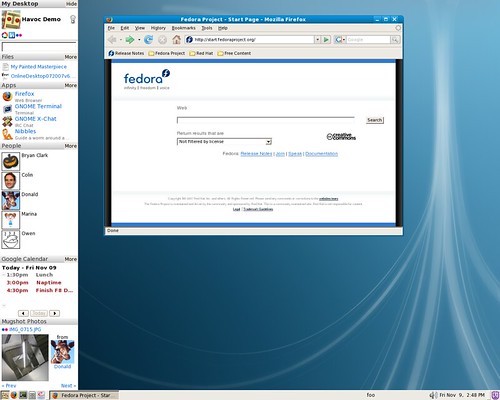
I took a look at Fedora's online desktop a while back, and though that it was cute, but nothing to write home about yet. I want a truly online desktop, though, taking me away from living in my browser, but allowing me to be there if I need to be. No, I don't want Flock, though I think that's a great idea. Here are the things I want:
- Unified contacts: I want entries in "About Me" for IM, e-mail, and social sites. I want my contacts from all of them to appear in one place, with updates aggregated. Think of an RSS feed for people. I want to be able to click on one of them to chat, e-mail, voice/video, or whatever is supported by the protocols for that connected person. If different services (e.g. Facebook and e-mail) are really the same person, I want to be able to join them into the same contact. Let's beef up Soylent, shall we? We can combine it with Gimmie.
- I want my e-mail reader to aggregate, as well. I don't care where the e-mail came from. I just need to hit "Reply" and it'll send mail back where it came from. Take my contacts from "About Me" and automatically set it up for me. Pull my message from Facebook or wherever and include them, too. I'm tired of checking for messages in five different places.
- Calendaring is pretty good now, but could always be better. Evolution uses online calendars and puts them in my desktop calendar. That's cool, except when it doesn't work and the whole panel hangs up. Uck! Make it stable, please.
- I want my photo organizer aggregated. F-Spot should handle my local files, shares, Facebook, Flickr, and Photobucket photos transparently. When I import new photos, ask me where to put them. Give me the choice to do cross-site backups of all or selected photos/albums.
- I want my office suite to work with online versions. OO.o already has a Google Docs extension, but it's tedious. I don't want to go to "Google Docs" and hit "Import." I want to choose to open a document and be presented with the Open File dialog with and extra bookmark for Google Docs. Any other major player should have an extension, too, of course.
- I also want my office software to be my blogging software. There's no reason to use two interfaces for that. Sun sells a nice OO.o extension for this, so I know that it can be done. While we're at it, make an Epiphany extension which is useful for blogging, clips parts of a web page, and copies the stuff over to the office software for me.
- I want a video aggregator, too. I want Totem to offer me virtually every online video in existence. And no, I don't want to do it from the sidebar. If I have to do it from the sidebar, make sure using it doesn't crew up my keyboard shortcuts like it does now. I just want to think "Play a video" and have a big, searchable list to work with. Local or online, it shouldn't matter. I also want video management for Totem the way Rhythmbox is formatted now.
- Speaking of Rhythmbox, clean up the plugins. Add more online stores. Make Last.fm easier to use. Let it record streams. Besides all that, I think it's pretty online as it is now. I can pretty much do all my music from there (including creating/ripping audio CDs and editing tags).
For those who can't hear the playful tone in my voice -- this "whine" is really just a fun way to suggest how we could make the online desktop better. I'm actually quite happy (though not satisfied) with my desktop as it is.
Edit: I've come up with an addition to my list. My feed reader should work with my video and music player to list attachments which work with those applications. No, I don't want Rhythmbox to be a feed reader. I already have one. I want the feed reader to publish attachments and titles for Rhythmbox to look over and decide which are music. Totem should read the same information. See a feed? Subscribe and don't worry about launching a player from the feed reader. Decide "Hey, I want to watch something." Open Totem. "Oh, hey, there's a new episode of Linux Journal. That sounds good."
Wednesday, April 23, 2008
Freaking Old Linux Desktop Shots

Those of you who jumped onto the Ubuntu boat will not remember the early days of the Linux desktop. The site linked above goes back almost as far as I do. Gnome wasn't around when I started with Linux, though.
You might want to squint when you look at these. The desktop wasn't pretty!
Titanic Linux
Tuesday, April 15, 2008
A Video Overview of Ubuntu 8.04 LTS
Edit: Added videos for Office and Sound.
This was originally intended to be a single video, but neither YouTube nor Google Videos would host something that large, so I chopped it up into sections.
Video transcript:
This video ”produced” by Daeng Bo for ibeentoubuntu.com. The voice-over is done by me, Chiraporn Srisutthakarn. I am not a native English speaker, so please excuse my slight accent. This video is licensed under the Creative Commons license, which means that you can reuse and re-edit it.
Let's start by talking about the desktop. If you have used Ubuntu before, the desktop will be very familiar. It has not changed much in the last few years. It does, however, have a few great new features in Ubuntu Hardy, so keep your ears and eyes open. Even if you haven't used Ubuntu before, you will notice some similarities to other operating systems. There are icons. There are panels. There are menus. There are also a few features which are not present on Microsoft Windows or Mac OS Ten. There are two panels on the desktop. This is configurable, and you can have one or several if you want to change the look of your desktop. I'll be describing the default setup in Ubuntu. The bottom panel has four elements: the "show desktop" icon, the taskbar, which shows all your windows on the present workspace, the workspace switcher, allowing you to organize your applications into work areas so that windows don't get cluttered, and the trash icon. To you, it may look similar to Microsoft Windows. These elements, along with just about everything else in Ubuntu, can be modified by clicking the right mouse button. The top panel contains the menus, quick-launchers, panel applets, the notification area, and the clock. The menus are divided into three categories. The applications menu gives you access to all the programs installed on your computer and has the ability to add more if you wish. These applications are divided into sensible categories and the applications are named for what they do. When you want to listen to music, you choose Sound and Video and open the Rhythmbox music player. When you want to do word processing, you go to Office and select the Open Office Word Processor. Finding and using your applications has never been easier. The places menu gives you quick access to the places you visit most often. Your user files, documents, videos, and other bookmarked areas are available at the top of the menu. If you need to delve into your computer's system files, access the CD or DVD drive, connect to a computer on the network, search for files, or find a recent file, those are all here, too. The system menu lets you change how your computer acts. The Preferences menu adjusts facets which only affect you as a single user, while Administration makes changes computer-wide for all users. You can also get information about your operating system or shut down the computer from here. Quick-launch icons give you super-fast access to your most-used programs. You can remove one by right-clicking on it. You can add another manually or by finding the menu item and either dragging it or right-clicking and choosing to Add this launcher to the panel. There are many small but handy applications which can run inside your panel. These are called applets. The fast user switching applet and the deskbar applet are included by default, but you can add more by right-clicking on the panel where you want them to appear. The notification area is similar to the system tray in Microsoft windows. Programs which send notifications will cause an icon to appear here. Typical notification icons include updates, error messages, the network manager, music players, chat clients, and the bittorrent client. In addition to the volume control and the quit button, you also have a clock and calendar. Clicking on this will give you a calendar for the current month and a list of your appointments. If you set a home locality, you will also see updated weather. Ubuntu also comes with fancy 3D effects for supported graphics cards. If you have a relatively modern desktop with NVidia, ATI Radeon, or Intel graphics, 3D effects should work with no configuration necessary. Pressing the Window or Command key along with E will show you all your workspaces. You can move windows around and change workspaces this way.Pressing Alt and Tab will rotate through your windows while showing a shot of each. No more guessing which of five similarly-named windows you want. If you enable extra effects in your preferences, you will even have the option of pressing Windows-Shift-S to get a fancier switching method. Extra effects also bring those wobbly windows you've probably seen on YouTube.
Let's begin with the internet applications. There are: Firefox 3. Firefox is a well-known browser, and version three has many new features and enhancements, including being as fast as hell. Pidgin is a text chat client Ekiga is a software phone. You can also install Skype if you need to talk to friends on their network. Transmission is a fast and light bittorrent manager. Ubuntu 8.04 LTS has Firefox 3.0. In a recent round-up of the upcoming new browsers, CNet found Firefox 3.0 to be the overall winner, citing its security, stability, and extensibility. ZDNet benchmarked Firefox against other browsers and found it to be the fastest. Safari and Firefox basically tied. ARS Technica reported on tests of memory usage when opening thirty tabs. Firefox 3 beat all comers, even Opera, often considered to be the light-weight browser of choice. Because Firefox's extensions are part of what makes it so great, Ubuntu makes it easy to install extensions system-wide for every user. While not all extensions are available this way, the most common are. Firefox has a brand-new bookmarking system which keeps track of the most recent, most visited, and newly tagged. Tags mean that you never need to think about which of several categories you want to file a bookmark in. Pidgin 2.4 is a chat client which can talk to the networks for AIM, GTalk, Jabber, MSN, Yahoo, Myspace, and many more. Because it concentrates on compatibility with many networks, not all the advanced features of every network are available. Pidgin doesn't support voice or video chat, for example. If you need this functionality, there are other clients which support it. Pidgin currently holds the top position on Lifehacker's list of top five IM clients. Ekiga is a software phone, much like Skype. It uses the open SIP protocol, making it able to talk to many other software phones. You can also purchase minutes to call out to cell phones and land lines around the world at very affordable rates, most often below those of Skype. Unfortunately, Skype's protocol is secret, and Ekiga is unable to cross the bridge to talk to Skype users. Skype DOES make a client for Ubuntu, though, so you can contact your Skype friends that way. This release of Ubuntu has a new bittorrent client called Transmission. Transmission is a light but full-featured client which supports multiple torrents, global and individual bandwidth usage, and creating torrents.
Ubuntu comes with many time-wasting games installed by default. While no one would call Ubuntu a gaming system, there are literally hundreds more to install from the repositories. Arcade, side-scrollers, strategy, simulation, and first-person shooters are all represented. There are no usable MMORPGs in the Ubuntu repositories, but several major games have Linux clients, and even more can run under the Windows compatibility layer. Let's watch Daeng lose at several easy games. (Ooh, the computer got him diagonally) Wow. He's really bad, isn't he?
Unlike other operating systems, Ubuntu 8.04 LTS comes with a full suite of office applications. You don't get a cut down version like Microsoft Works. You don't need to buy a new Mac to get it included, either. Evolution is a personal information manager which handles your e-mail, calendaring, address book, tasks, and memos. It can connect to POP mail systems like your company's e-mail or Hotmail, and it can use IMAP to read the mail while leaving it on the server. You can even read your GMail from Evolution. The calendar handles many formats, both local and on the network. New in Ubuntu is a connector for your Google Calendar. The address book integrates well with the file browser and the IM clients, allowing you to add chat buddies or send e-mail from the file browser. As mentioned before, tasks and appointments in Evolution show up on your desktop in the calendar. Double clicking on a date in the desktop calendar even brings up that date on teh Evolution calendar. How easy is that? Openoffice.org is probably the second-most famous piece of Free software next to Firefox. It may need no introduction, but you'll get one, anyway. The word processor is the brand-new 2.4 version of Openoffice.org, bringing better Microsoft Word compatibility, PDF editing, improved localization, including easier switching of spell-check languages, and more integration into the Ubuntu desktop. The spreadsheet has performance enhancements and something for those addicted to pivot tables. The presentation software has fancy new 3D slide transition effects. The database program gains compatibility with Access 2007 files. There is also a vector graphics program, but we'll be talking about that with the other graphics programs.
Ubuntu comes with all the programs you'll need to play music and video on your computer. While Ubuntu doesn't play many types of files right out of the box, almost every kind of file is playable after you install the right codecs. Sadly, due to digital rights management (DRM) and the Digital Millenium Copyright Act, a few formats can't be played legally without purchasing the codecs. Vendors like Fluendo offer these codecs in easy-to-install packs for less than you would think. If you are in a country which has more progressive laws, you can install these codecs from within Ubuntu using the codec installer. Totem movie player is a simple movie player which supports playlists. It has many plugins for visualization and connectivity. It can search your user area for videos, search YouTube, or even connect to your MythTV server to play new recordings, meaning you don't need to have a dedicated front-end to MythTV anymore. Let's search for a video and see what we get. pressing "f" takes us into full-screen mode. Pressing it again takes us back out. Now let's take a look at what YouTube has to say about Ubuntu Hardy. Since it's small, we can zoom using the 0, 1, or 2 buttons. That was great. What about music? Ubuntu's default music player, Rhythmbox, takes a music management approach to playing music. It searches your music library and organizes the tracks by artist and album. You can add other factors like genre and year, if you want. There's no need to go to the file manager and look through your collection. In fact, if you do that and double click on a file, Ubuntu assumes that you want to play a single file and opens the file in the Movie player. You can change this behavior if you want to, of course. Practically everything in Ubuntu is configurable. The music player handles your portable music player, whether it be an iPod, an MTP player (you know ... those that need to use Windows Media Player to transfer files), or a simple USB Mass Storage device. You can add files to, delete files from, and play files directly from your portable. It can even transcode on the fly for you. If you have a DAAP server like iTunes or Firefly, Rhythmbox will identify it automatically and the songs will appear in the left panel. Rhythmbox shares files using DAAP, too, so you can share files with your Rhythmbox and iTunes-using family or roommates. Put in a CD and you will see that Rhythmbox can play it, looking up the track information automatically on the internet. Right-click on the CD to rip it to your collection. Ubuntu also has a dedicated CD burner for those who want more control over their rips. Although you can't use the iTunes store since it only works with iTunes, there are a couple of stores for independent artists that you can use from within Rhythmbox. You can also purchase your tracks DRM free from Amazon. Hey, Ubuntu developers, we're waiting for that Amazon store plugin! New to Ubuntu this time around is Brasero, a CD burning application. While virtually everything the average user needs to do with regard to burning can be done from the file browser, many people feel more comfortable with a Nero-style CD burner, and the Ubuntu developers were happy to fill that desire.
Of course Ubuntu comes with graphics programs. Just about everything a home user needs is installed by default. F-spot is a photo manager. Like Rhythmbox, it hides the file organization from you and uses tags to help you keep track of photos. Want only the photos from that trip to Indonesia with John in them? That's easy to do with tags. It also has touch-up capabilities, meaning that you don't need to use a photo editor for minor edits (although you can open one right from F-spot's interface). F-spot even has a version-control system, allowing you to save the original while touching up the photo. Ubuntu comes with the Gimp, a bitmap graphics editor. It's different from Photoshop, so it may take some getting used to, but web developers who use it claim that it can do just about everything that Photoshop can do. Openoffice.org's Draw program is a full-featured vector drawing program which is easier to use than ever!
This was originally intended to be a single video, but neither YouTube nor Google Videos would host something that large, so I chopped it up into sections.
Video transcript:
This video ”produced” by Daeng Bo for ibeentoubuntu.com. The voice-over is done by me, Chiraporn Srisutthakarn. I am not a native English speaker, so please excuse my slight accent. This video is licensed under the Creative Commons license, which means that you can reuse and re-edit it.
Desktop
Let's start by talking about the desktop. If you have used Ubuntu before, the desktop will be very familiar. It has not changed much in the last few years. It does, however, have a few great new features in Ubuntu Hardy, so keep your ears and eyes open. Even if you haven't used Ubuntu before, you will notice some similarities to other operating systems. There are icons. There are panels. There are menus. There are also a few features which are not present on Microsoft Windows or Mac OS Ten. There are two panels on the desktop. This is configurable, and you can have one or several if you want to change the look of your desktop. I'll be describing the default setup in Ubuntu. The bottom panel has four elements: the "show desktop" icon, the taskbar, which shows all your windows on the present workspace, the workspace switcher, allowing you to organize your applications into work areas so that windows don't get cluttered, and the trash icon. To you, it may look similar to Microsoft Windows. These elements, along with just about everything else in Ubuntu, can be modified by clicking the right mouse button. The top panel contains the menus, quick-launchers, panel applets, the notification area, and the clock. The menus are divided into three categories. The applications menu gives you access to all the programs installed on your computer and has the ability to add more if you wish. These applications are divided into sensible categories and the applications are named for what they do. When you want to listen to music, you choose Sound and Video and open the Rhythmbox music player. When you want to do word processing, you go to Office and select the Open Office Word Processor. Finding and using your applications has never been easier. The places menu gives you quick access to the places you visit most often. Your user files, documents, videos, and other bookmarked areas are available at the top of the menu. If you need to delve into your computer's system files, access the CD or DVD drive, connect to a computer on the network, search for files, or find a recent file, those are all here, too. The system menu lets you change how your computer acts. The Preferences menu adjusts facets which only affect you as a single user, while Administration makes changes computer-wide for all users. You can also get information about your operating system or shut down the computer from here. Quick-launch icons give you super-fast access to your most-used programs. You can remove one by right-clicking on it. You can add another manually or by finding the menu item and either dragging it or right-clicking and choosing to Add this launcher to the panel. There are many small but handy applications which can run inside your panel. These are called applets. The fast user switching applet and the deskbar applet are included by default, but you can add more by right-clicking on the panel where you want them to appear. The notification area is similar to the system tray in Microsoft windows. Programs which send notifications will cause an icon to appear here. Typical notification icons include updates, error messages, the network manager, music players, chat clients, and the bittorrent client. In addition to the volume control and the quit button, you also have a clock and calendar. Clicking on this will give you a calendar for the current month and a list of your appointments. If you set a home locality, you will also see updated weather. Ubuntu also comes with fancy 3D effects for supported graphics cards. If you have a relatively modern desktop with NVidia, ATI Radeon, or Intel graphics, 3D effects should work with no configuration necessary. Pressing the Window or Command key along with E will show you all your workspaces. You can move windows around and change workspaces this way.Pressing Alt and Tab will rotate through your windows while showing a shot of each. No more guessing which of five similarly-named windows you want. If you enable extra effects in your preferences, you will even have the option of pressing Windows-Shift-S to get a fancier switching method. Extra effects also bring those wobbly windows you've probably seen on YouTube.
Overview of Ubuntu 8.04 LTS Applications
Daeng has opened many of the great applications that Ubuntu comes with by default. He has divided them into six different categories. The categories are: Internet Applications Games Office Applications Sound and Video Graphics AccessoriesInternet
Let's begin with the internet applications. There are: Firefox 3. Firefox is a well-known browser, and version three has many new features and enhancements, including being as fast as hell. Pidgin is a text chat client Ekiga is a software phone. You can also install Skype if you need to talk to friends on their network. Transmission is a fast and light bittorrent manager. Ubuntu 8.04 LTS has Firefox 3.0. In a recent round-up of the upcoming new browsers, CNet found Firefox 3.0 to be the overall winner, citing its security, stability, and extensibility. ZDNet benchmarked Firefox against other browsers and found it to be the fastest. Safari and Firefox basically tied. ARS Technica reported on tests of memory usage when opening thirty tabs. Firefox 3 beat all comers, even Opera, often considered to be the light-weight browser of choice. Because Firefox's extensions are part of what makes it so great, Ubuntu makes it easy to install extensions system-wide for every user. While not all extensions are available this way, the most common are. Firefox has a brand-new bookmarking system which keeps track of the most recent, most visited, and newly tagged. Tags mean that you never need to think about which of several categories you want to file a bookmark in. Pidgin 2.4 is a chat client which can talk to the networks for AIM, GTalk, Jabber, MSN, Yahoo, Myspace, and many more. Because it concentrates on compatibility with many networks, not all the advanced features of every network are available. Pidgin doesn't support voice or video chat, for example. If you need this functionality, there are other clients which support it. Pidgin currently holds the top position on Lifehacker's list of top five IM clients. Ekiga is a software phone, much like Skype. It uses the open SIP protocol, making it able to talk to many other software phones. You can also purchase minutes to call out to cell phones and land lines around the world at very affordable rates, most often below those of Skype. Unfortunately, Skype's protocol is secret, and Ekiga is unable to cross the bridge to talk to Skype users. Skype DOES make a client for Ubuntu, though, so you can contact your Skype friends that way. This release of Ubuntu has a new bittorrent client called Transmission. Transmission is a light but full-featured client which supports multiple torrents, global and individual bandwidth usage, and creating torrents.
Games
Ubuntu comes with many time-wasting games installed by default. While no one would call Ubuntu a gaming system, there are literally hundreds more to install from the repositories. Arcade, side-scrollers, strategy, simulation, and first-person shooters are all represented. There are no usable MMORPGs in the Ubuntu repositories, but several major games have Linux clients, and even more can run under the Windows compatibility layer. Let's watch Daeng lose at several easy games. (Ooh, the computer got him diagonally) Wow. He's really bad, isn't he?
Office Applications
Unlike other operating systems, Ubuntu 8.04 LTS comes with a full suite of office applications. You don't get a cut down version like Microsoft Works. You don't need to buy a new Mac to get it included, either. Evolution is a personal information manager which handles your e-mail, calendaring, address book, tasks, and memos. It can connect to POP mail systems like your company's e-mail or Hotmail, and it can use IMAP to read the mail while leaving it on the server. You can even read your GMail from Evolution. The calendar handles many formats, both local and on the network. New in Ubuntu is a connector for your Google Calendar. The address book integrates well with the file browser and the IM clients, allowing you to add chat buddies or send e-mail from the file browser. As mentioned before, tasks and appointments in Evolution show up on your desktop in the calendar. Double clicking on a date in the desktop calendar even brings up that date on teh Evolution calendar. How easy is that? Openoffice.org is probably the second-most famous piece of Free software next to Firefox. It may need no introduction, but you'll get one, anyway. The word processor is the brand-new 2.4 version of Openoffice.org, bringing better Microsoft Word compatibility, PDF editing, improved localization, including easier switching of spell-check languages, and more integration into the Ubuntu desktop. The spreadsheet has performance enhancements and something for those addicted to pivot tables. The presentation software has fancy new 3D slide transition effects. The database program gains compatibility with Access 2007 files. There is also a vector graphics program, but we'll be talking about that with the other graphics programs.
Sound and Video
Ubuntu comes with all the programs you'll need to play music and video on your computer. While Ubuntu doesn't play many types of files right out of the box, almost every kind of file is playable after you install the right codecs. Sadly, due to digital rights management (DRM) and the Digital Millenium Copyright Act, a few formats can't be played legally without purchasing the codecs. Vendors like Fluendo offer these codecs in easy-to-install packs for less than you would think. If you are in a country which has more progressive laws, you can install these codecs from within Ubuntu using the codec installer. Totem movie player is a simple movie player which supports playlists. It has many plugins for visualization and connectivity. It can search your user area for videos, search YouTube, or even connect to your MythTV server to play new recordings, meaning you don't need to have a dedicated front-end to MythTV anymore. Let's search for a video and see what we get. pressing "f" takes us into full-screen mode. Pressing it again takes us back out. Now let's take a look at what YouTube has to say about Ubuntu Hardy. Since it's small, we can zoom using the 0, 1, or 2 buttons. That was great. What about music? Ubuntu's default music player, Rhythmbox, takes a music management approach to playing music. It searches your music library and organizes the tracks by artist and album. You can add other factors like genre and year, if you want. There's no need to go to the file manager and look through your collection. In fact, if you do that and double click on a file, Ubuntu assumes that you want to play a single file and opens the file in the Movie player. You can change this behavior if you want to, of course. Practically everything in Ubuntu is configurable. The music player handles your portable music player, whether it be an iPod, an MTP player (you know ... those that need to use Windows Media Player to transfer files), or a simple USB Mass Storage device. You can add files to, delete files from, and play files directly from your portable. It can even transcode on the fly for you. If you have a DAAP server like iTunes or Firefly, Rhythmbox will identify it automatically and the songs will appear in the left panel. Rhythmbox shares files using DAAP, too, so you can share files with your Rhythmbox and iTunes-using family or roommates. Put in a CD and you will see that Rhythmbox can play it, looking up the track information automatically on the internet. Right-click on the CD to rip it to your collection. Ubuntu also has a dedicated CD burner for those who want more control over their rips. Although you can't use the iTunes store since it only works with iTunes, there are a couple of stores for independent artists that you can use from within Rhythmbox. You can also purchase your tracks DRM free from Amazon. Hey, Ubuntu developers, we're waiting for that Amazon store plugin! New to Ubuntu this time around is Brasero, a CD burning application. While virtually everything the average user needs to do with regard to burning can be done from the file browser, many people feel more comfortable with a Nero-style CD burner, and the Ubuntu developers were happy to fill that desire.
Graphics
Unfortunately, a bug in the Hardy beta version of F-Spot is keeping me from finishing this portion of the video.Of course Ubuntu comes with graphics programs. Just about everything a home user needs is installed by default. F-spot is a photo manager. Like Rhythmbox, it hides the file organization from you and uses tags to help you keep track of photos. Want only the photos from that trip to Indonesia with John in them? That's easy to do with tags. It also has touch-up capabilities, meaning that you don't need to use a photo editor for minor edits (although you can open one right from F-spot's interface). F-spot even has a version-control system, allowing you to save the original while touching up the photo. Ubuntu comes with the Gimp, a bitmap graphics editor. It's different from Photoshop, so it may take some getting used to, but web developers who use it claim that it can do just about everything that Photoshop can do. Openoffice.org's Draw program is a full-featured vector drawing program which is easier to use than ever!
Accessories
Ubuntu has many little programs which make your life simpler. They include: A dictionary to look up words from the internet. It has multi-language capability and can recommend words which might be close to what you really wanted but couldn't remember. Watch Daeng misspell some easy words. The calculator looks simple, but it can be used for more advanced problems, scientifics equations, or your accounting needs, too. Tomboy notes is an easy way to organize your notes and your life. It uses a wiki-style format to link between notes, making remembering your murky past that much easier. Daeng uses it for all his research. The Disk Usage Analyzer will show you where all that disk space goes. Daeng's got way too much porn, I see. The Tracker indexed search will find files using a full-text search. You no longer need to worry if you lost a file and can't find it. Finally, the Deskbar applet pulls these all together. You now have one place to type your desires and then you can choose to search your files, your bookmarks, your history, your notes, the web, or for a definition. You can do much more than that, too. The Deskbar will become the first place you look for anything.Conculsion
Thank you for watching!!! Many more applications are available from the repositories. You can install thousands of programs with little trouble, all free of charge and legal, too. Enjoy Ubuntu Linux 8.04 LTS!!! By the way, these thirty or so windows can be opened simultaneously on a three-year old old AMD Sempron laptop with 1GB of memory without any significant slowdown or instability.Friday, March 7, 2008
Put Your Best Chat Buddies on Your Panel
So you've got a couple of people that take up 95% of your chat time. Maybe they're your teammates. Maybe they're your best friends. For me, it's my gal. Whoever it is, you probably start a conversation with them this way:
 Wouldn't it be nice to take these four steps down to a single, one-click method? You can, but you'll need to be using the Empathy client, which may not suit all of you. Since you're probably using Pidgin, let's install Empathy from the repos. You'll also need the Empathy Megaphone applet. You can click the links above to install the application and applet automatically.
Once you install Empathy, you'll need to install connection managers for any IM protocols you'll be using. The linkified list is here, to make it easy for you:
Once you configure Empathy to connect to your Jabber, GTalk (really also Jabber), or MSN network, you can add the Megaphone applet to your panel. Right-click on the panel and choose "Add to Panel...." Choose the Megaphone applet and click "Add." Repeat this for as many contacts as you want to appear on the panel.

You'll find a configure-style icon on your panel.

Click on that and you'll be asked to choose a contact for that applet to watch.

Choose your contact, and the applet will tell you if he or she is off-line

or online.

If your friend or team mate is online, just click on the applet to start a discussion. One-click goodness is yours!
- Click on the notification are to bring up your chat client list of who's online.
- Check whether he or she is online.
- Double-click on your chat buddy to initiate a conversation.
- Click on the notification area again to minimize the buddy list because you really don't need to stare at it all the time.
 Wouldn't it be nice to take these four steps down to a single, one-click method? You can, but you'll need to be using the Empathy client, which may not suit all of you. Since you're probably using Pidgin, let's install Empathy from the repos. You'll also need the Empathy Megaphone applet. You can click the links above to install the application and applet automatically.
Once you install Empathy, you'll need to install connection managers for any IM protocols you'll be using. The linkified list is here, to make it easy for you:
- MSN connection manager for telepathy
- Jabber/XMPP connection manager
- A telepathy connection manager that uses libpurple, probably the easiest if you're moving from Pidgin
- IRC connection manager for Telepathy
- Link-local XMPP connection manager for the Telepathy framework
- SIP connection manager for the Telepathy framework, if you're using Ekiga or Wengo phone
Once you configure Empathy to connect to your Jabber, GTalk (really also Jabber), or MSN network, you can add the Megaphone applet to your panel. Right-click on the panel and choose "Add to Panel...." Choose the Megaphone applet and click "Add." Repeat this for as many contacts as you want to appear on the panel.

You'll find a configure-style icon on your panel.

Click on that and you'll be asked to choose a contact for that applet to watch.

Choose your contact, and the applet will tell you if he or she is off-line

or online.

If your friend or team mate is online, just click on the applet to start a discussion. One-click goodness is yours!
Wednesday, October 3, 2007
Video Overview of the Ubuntu Desktop
Crappy, again, but I'm getting better. This one is about 22 minutes and covers the top and bottom panels.
The Google Video
The Google Video
Monday, June 11, 2007
The Panel Applets
Or, "How to make your life a little easier"
Let's look at how to add a panel applet and go through descriptions of the common applets one by one.

So to add an applet to the panel, we right click on an empty space in the panel and choose "Add to Panel." Not complicated or difficult. We will be presented with a dialog which lists the installed applets in various categories. Although the list is already pretty long, more can be installed by searching for "gnome applet" in Add/Remove.
 Below is a list of applets which I think might interest you:
Panel applets are great little additions to your desktop. They can make many jobs as simple as glancing to your panel. Find a few that you like.
What is an Applet?
If you look at the Ubuntu menu, you'll notice that programs are called applications. Given that hint, you can probably guess that an applet is just a very small application. Panel applets are small, single-purpose programs which sit in your panel. They may be used to monitor some aspect of your computer, give you information about other computers on the network, or just indicate the weather in your area. Sometimes applets give you an easy-to-access interface for a common program like a dictionary, search, notes, blogger or calculator. In these cases, clicking on the panel applet pulls down a small version of the larger program. Clicking again hides the program.Let's look at how to add a panel applet and go through descriptions of the common applets one by one.
How to Add an Applet to the Panel
The Ubuntu desktop, based on the Gnome (pronounced Ga-nome) Dektop Project, is amazingly predictable and consistent. The Gnome developers went through a lot of usability testing with average people and came up with the Human Interface Guidelines (HIG). All applications officially in the Gnome Desktop must adhere to the HIG standards. Why am I telling you this? It is because right-clicking to bring up a context menu is in the HIG, and the panel supports this because it is part of the Gnome Desktop. If we want to change or view the properties of something, we can consistently right-click to get what we want, and that is no different with the panel.So to add an applet to the panel, we right click on an empty space in the panel and choose "Add to Panel." Not complicated or difficult. We will be presented with a dialog which lists the installed applets in various categories. Although the list is already pretty long, more can be installed by searching for "gnome applet" in Add/Remove.
Accessories
- Address Book Search: If you use Evolution as your main personal information manager, this applet will search through your contacts and allow you to e-mail them just as if you were using Evolution itself.
- Clock: This is already present in the top-right corner of your screen. The look and format can be changed by ... right clicking on the applet.
- Deskbar: To me, this is the big daddy of all applets you'll want to use. It can search virtually anything from your desktop. People tell me that it's similar to Google Desktop Search on WinXP and Finder on OSX, but I don't really know. This is a list of some of the things it can do for you:
- Web Searches: If you use the Epiphany Web Browser (the Gnome Desktop Application) instead of the standard Ubuntu Firefox, you can use the Deskbar to search under every quicksearch. I have Wikipedia, Google, Flikr, and many others.
- History: Previous searches matching the phrase jump right to the top.
- Programs: Launch a program by name instead of going to the menu.
- Web: Type or paste a web or e-mail address and go directly their.
- Files, Folders, and Places: Search for places which include the search phrase.
- Dictionary: Look up words using the dictionary program.
- Yahoo! Search: Get the top 10 results from Yahoo on the phrase.
- Beagle: You can search inside your files instead of just by name. Want find that chat you had with Joe in March? It's a lot easier this way. Results open in a new window.
- Web Bookmarks: If you use Epiphany Web Browser, your bookmarks will be searched for the phrase.
- Web History: Go to a recent web page by typing part of its address or name.
- Beagle Live: Similar to Beagle, above, but results are presented in the same search column as everything else.
- Computer Actions: Type "shutdown" to shutdown, for example.
- del.icio.us Bookmarks: If you are part of the social bookmarking site http://del.icio.us, you can retrive your bookmarks from there.
- Shortcuts and more are available by choosing "More" inside the Preferences window.
- Dictionary Look up: This used to be one of my favorites, but is not of much use since Deskbar came along. The only superior aspect is that the dictionary pulls down from the panel instead of being a separate window.
- Fish: Want to raise goldfish but don't want the mess? This is your chance. Goldfish right in your panel!
- Geyes: Eyes eerily follow your mouse pointer around the desktop. While this applet initially looks just as silly as Goldfish, it can be extremely useful if you are the kind of person who loses your mouse a lot. Maybe consider longer mouse trails, too.
- Invest: If you have stocks that you want to follow, throw some of the symbols in here and have quick access.
- Sticky Notes: These are notes that work like Post-Its (r). I don't use them anymore now that I have Tomboy (below).
- Tomboy Notes: Wiki notes. These are the hottest thing I've ever seen for keeping notes for my book or an article. Today's note also helps you keep track of wasted time. To-dos or virtually anything else you want to record are possible with these bad boys.
- Weather Report: Weather reports in easy reach. The listed city closest to Masan is Busan/Kimhae. Close enough for gov't work.
Desktop and Windows
- Drawer: Not enough panel space for all your applets? Add a drawer to put them in. Geez. I hope you never need this one.
- Force Quit: Although applications (especially the Gnome ones) are well-behaved, you may sometimes hit an error and have an application hang up on you. These are almost always proprietary programs from outside Ubuntu. Don't worry. It won't take down the whole system. If you have the misfortune to actually need to work with one of these programs on a regular basis, you can install the "Force Quit" applet to kill off the offending application. Just click on the applet then click on the window you want to kill off.
- Lock Screen: If you leave your computer on and logged in while you are away, consider locking the screen. This function is also available on the log out screen.
- Quit: This brings up the log out screen which gives you the option to lock the screen, log out, shut down, or restart. If you change your preferences, you can also suspend or hibernate your laptop here. This applet is already in the top right corner of your screen.
- Show Desktop: I never need this. It's already in the bottom-left corner of your screen.
- Trash: I tend to delete files using Shift-Delete, erasing them immediately. If you use the Delete key or "Move to Trash" on the file, they will end up in your Trash (think of the Recycle Bin in WinXP). Empty it when you need disk space.
- Window List: The taskbar at the bottom of your screen is really this applet.
- Window Selector: If you don't like all the space taken up by the Window List Applet, get rid of it and use this instead. It gives you a pull-down (or pop-up) menu list of all open windows.
- Workspace Switcher: This is already in the lower-right corner of your screen. The number of workspaces is adjustable (right click, of course). When one workspace gets cluttered with too many windows, move them to new spaces and open new applications in the new space. I generally have four workspaces and keep my applications on them like this:
- Workspace 1: Web browser windows
- Workspace 2: E-mail and Chats
- Workspace 3: Documents or web pages that I'm writing
- Workspace 4: Documentation and notes related to the writing.
Internet
- Contact: If you install Telepathy (search Add/Remove), you can have all your MSN, GTalk, and Jabber contacts available for text and voice chat from the panel. This is kind of new and not 100% stable yet. Consider it early beta software, which is the reason it's not installed by default.
- Contact Group: If you want to talk to entire groups at once (like a conference call, I guess) use this applet. Same caveats as the Contact applet.
- Contacts Overview:
- Peekaboo: another instant messaging applet. This one is not as integrated as the ones above and uses the Peekaboo program to communicate.
- Zeroconf Service Discovery: When I'm at home, all the services are easy to find: printers, web pages on my server, VOIP clients, whatever. This is really only useful if you carry your laptop around to new networks all the time, like I do.
System and Hardware
- Battery Charge Monitor: Monitor your Laptop battery. You already have a limited form of this in the notification area.
- Brightness Applet: Lower the brightness of your laptop screen. It may or may not work depending on your laptop's hardware.
- CPU Frequency Scaling Monitor: If your CPU supports scaling back to save power, you can monitor it here.
- Inhibit Applet: You may now want to go into power-saving mode while you are watching a movie or even when plugged in to AC power. Turn power saving on and off here.
- Modem Monitor: Will you ever use your modem again?
- Network Monitor: If you want to watch the traffic going in and out of your network card, use this. Yes, I use it, and yes, I'm a geek. I don't see how it could interest you.
- System Monitor: Look after your CPU and memory usage. Click on this applet to open a task monitor similar to the one you get when you press CTRL-ALT-DEL in WinXP.
- Terminal Serve Client Applet: If you need to connect to a terminal server often, use this applet. What? Yeah. Don't worry about it.
- Volume Control: This is already on your panel in the top-right corner.
Utilities
- Character Palette: If you find that you often need non-standard characters like ñ or ©, then use this applet.
- Connect to Server: Unless you are a computer consultant who is traveling and changing networks all the time, don't worry about this.
- Keyboard Accessibility Status
- Keyboard Indicator: If you have multiple languages in your system and switch between them, you can easily get confused. Use this applet to remember what language you are currently typing in.
- Main Menu: This is a Start style menu. As in Windows 95. One menu to rule them all.
- Menu Bar: This is the Ubuntu menu. There are three sections divided by function. This type of menu has a better usability than the "One Menu" system, but some people prefer what they know.
- Notification Area: This is already located next to the clock. If you have updates, they'll appear here. If an application wants to keep itself available to you after close, it'll be here, as well.
- Pilot Applet: Do you have a Palm Pilot? I didn't think so. If you did, you'd use this applet.
- Run Application: If you like to type your commands in (like I do) instead of clicking around, this will bring up a command entry dialog. Alt-F2 does the same thing, so I would never use this applet.
- Search for Files: This is and old-fashioned, search-by-name applet. It's not of much use now that full-text search has arrived.
- Separator: This applet offers no functionality other than being aesthetic pleasing. If you have a bunch of applets, group them with the separator.
Panel applets are great little additions to your desktop. They can make many jobs as simple as glancing to your panel. Find a few that you like.
Wednesday, May 30, 2007
The Menu in Depth
The Menu in Depth
Applications
Programs which are installed by default or which you add later will be located here. Many are called simply by their function (e.g. Text Editor or Calculator). If there are several programs available for the same function, the name of the program is also included (e.g. OpenOffice.org Word Processor and Abiword Word Processor). The following is an overview of the major entries in the default setup.
Accessories
- Calculator: The calculator has only basic functions. If you want a more advanced calculator, use Add/Remove to search for calculator and install that.
- Dictionary: This will look up a word for you. It can be configured to work with dictionaries other than the default one (for example Korean) and it can be launched from the panel. A dictionary applet is available for the panel which creates a pulldown to type in the word. More useful is the Deskbar applet, which can be configured to look in the dictionary, your bookmarks, your history, and many other places. That's how I generally access the dictionary.
- Take Screenshot: If you want to take a picture of your screen for some reason (e.g. you're writing a blog like this), you can use this program. Hitting the "Print Screen" button does the same thing, and there is a panel applet available to launch the screenshot program, as well.
- Text Editor: This is similar to Notepad in MS WindowsXP, but has many more advanced functions.
- Tomboy Notes: When I am writing or doing research, I am constantly taking notes. Tomboy is great for this, because it allows you to link between notes and create links to new notes easily. It is sort of like a desktop wiki, if you know what that is. I keep a Tomboy applet in my top panel which makes it easy to find recent notes, create a new note, or even have a note dedicated to today's date, a great place to keep todos and the like.
Games

- AisleRiot Solitaire: A solitaire game with probably a hundred variations.
- Blackjack: 21. The Vegas standby. You can change card faces, as well.
- Chess: Human vs. human or human vs. computer (or, I guess computer vs. computer. Hmm. Wargames springs to mind).
- Five or More: A cute little game where you move pices around while new ones are constantly being added. Put five in a row to take them off the board.
- Four in a Row: Connect Four for the computer.
- Freecell: You have to know this game.
- Gnometris: A Tetris clone. The name comes from the Gnome Desktop, which is the desktop environment you are using now.
- Iagno: An Othello-type game
- Klotski: A puzzle game where you try to move the large square out of the box in as few moves as possible.
- Mahjongg: You said that this is your favorite. There are different tile faces to choose from.
- Mines: You know this one.
- Nibbles: This is a complicated worm game.
- Robots: You move around the board avoiding robot and trying to make them crash into each other.
- Same Gnome: The Same game for Gnome. Similar to the jewel games on Yahoo.
- Sudoku: The famous number puzzle.
- Tali: Yahtzee for the computer. Play against the computer or a friend.
- Tetravex: A number puzzle like quadraminoes.
Graphics
There are a million graphics programs for Ubuntu Linux, but only four are installed by default. If you want stuff like Picassa o r vector image programs, search for them in Add/Remove.
- F-Spot Photo Manager: This is an indexing and tagging program similar to Google's Picassa. You can organize your photos with tags indicating who is in them or where they were taken and then easily find all the photos that have that person or place in them.
- Gimp Image Editor: If you want to edit photos or create graphics on Linux, this is the way to do it. It's similar to Adobe Photoshop, but not quite as sophisticated. Think of PaintShop Pro, maybe. It has a lot of windows, so you'll want to put it on its own workspace if you use it.
- GThumb Image Viewer: This is the default image viewer. If you double-click on a graphic, this will display it. It can do some simple rotation and flipping. There are forward and backward buttons to browse through the photos in a directory (folder). You can also delete photos from within the program. Easy to use and extremely useful.
- XSane Image Scanner: You don't have a scanner. If you did, though, this is the program you'd use.
Internet
 If you are going to do anything on the Internet like browsing, chatting or Skype, the program will be here. Just like games, there are a million programs on Ubuntu Linux. Don't install too many, though, because most of the functionality is already there.
- Ekiga Softphone: This service is similar to Skype. I don't use it, so I can't comment on its quality, but it's free. I think you have to pay if you want to call land lines, though.
- Evolution Mail: This is the personal information manager (PIM) for Gnome. It's very similar to Outlook (the full version, not Express). Sometimes, it's too similar for my tastes. Anyway, it is the default mail and calendar application in Ubuntu Linux, so clicking a mailto: link or the clock/calendar will send you into Evolution. You can install Thunderbird if you don't like Evolution.
- Firefox Web Browser: You use this one already on WindowsXP, so the transition should be easy. Click on your mouse wheel (or both right and left buttons on the touchpad) in order to open a link in a new tab.
- Gaim Internet Messenger: You will use this instead of MSN Messenger. It is a multi-account program similar to Trillian on WindowsXP. You can connect to Yahoo, MSN, GTalk, AOL, and others from within the same program. It handles all the text functions well, but voice availability depends on the IM service. If you are not satisfied with it, I recommend Telepathy. Search for it in Add/Remove.
- Teminal Services Client: You won't be using this program unless you need to connect to a Windows Terminal Server. Not likely.
- Epiphany: Honorable mention goes to this web browser. It uses the same engine as Firefox to render web pages, so everything will look exactly the same, but Epiphany is built into the Ubuntu desktop. Bookmarks operate on a tagging system instead of folders and are available to other programs. The interface is generally faster. There are also many extensions available, such as ad blockers and smart bookmark extensions. It's also easy to add your own Quick Searches. CTRL-T opens a new tab and CTRL-L focuses the cursor in the url area.
Office
MS Office isn't available for Ubuntu. There are, however, many alternatives, quite a few of which open and save in MS Word format.
- Evolution: I've already covered Evolution in the Internet section. The full version has Mail, Calendar, Address Book, and To Do functions. I don't use 30% of these capabilities, so I tend to stay away from Evolution. GMail has POP3 access, so you can set Evolution up to download and read your mail offline.
- OpenOffice.org: This is the default office suite for Ubuntu. It is extremely slow to start, taking about 30 seconds, but the speed is good once it loads. It is full featured. One-button export to PDF is especially useful for me. I honestly tend to use Google Apps these days because I don't need much more.
- Database: It is called Base. I doubt you'll have the need for this, but it operates similarly to MS Access.
- Presentation: Named Impress, this is a full-function presentation program. Embedding videos is still difficult, but every other function you'd want is available.
- Spredsheet: This is called Calc, and it has every spreadsheet function you'll need.
- Word Processor: Write is a style-based word processor. This means that using styles like Header 1, Header 2, and Title are preferred to setting the font size and type. The documents come out looking much more consistent and changing every heading or sub-heading is as easy as modifying the style.
Sound and Video
 A lot of what you want from a computer will be in here. Music. Movies. Ripping. Writing audio CDs. Like other sections, there are so many optional programs that I couldn't begin to explain them all. If you don't like the default choices, search in Add/Remove and find / try others.
- Movie Player: You mentioned GOM. I hope that I spelled that correctly. The movie player (called Totem) in Ubuntu can play just about anything you want. The interface is easy to understand and it supports playlists for entire seasons of TV shows. Get fullscreen playback by pressing "f." Pause or play with "p." It's a beautiful piece of software, but you can install MPlayer if you don't like Totem for some reason.
- Rhythmbox Music Player: People tell me this is an iTunes-style player. When you start, it will ask you for a default location for your music. You can then browse by artist, album and genre, setting up queues of music. It also supports Internet radio and podcasts. There are quite a few extensions available, as well. It has a party (full-screen) mode for when people come over and want to queue up music.
- Serpentine Audio CD Creator: If you want to use audio files to create standard music CDs, this is the program to use. I don't use it, so I can't go into depth about it.
- Sound Juicer CD Extractor: This is a CD ripping program. There are, of course, many options to choose from, but the defaults are pretty good. Depending on your portable player, you might want to change the format it rips to. I think it uses OGG Vorbis by default, which some players don't support (but is a patent-free, high-quality format which destroys mp3). You can change it to a format which your player supports. MP3 is safe, but the sound quality is the lowest of the major formats.
Places
 The Places menu is the launching point for the file explorer (called Nautilus). Think of it as a My Computer icon on steroids. Your home folder, where all your private documents and settings are stored, will be the logical starting point for most things you do. Clean your home folder out regularly, as it can get cluttered and make things difficult to find. Have a good folder (directory) structure to keep your files in. The Desktop entry will probably be the second most used entry in the Places menu. If you bookmark folders in the file explorer (more on how to do that later) they will also conveniently appear in the Places menu.
Search for Files is useful, but slow. You probably won't have that many files to search for right now, anyway. A better option is the Desktop Search tool (F12), which indexes your documents and photos based on content. Full text search of your documents and e-mails at a touch. Can remember where or under what name you saved that presentation on fossils? Desktop Search for fossils and get a list of all documents and e-mails using that word in the text of the document. Pretty snazzy.
The other entries: Computer, CD/DVD creator, Network, and Connect to Server will probably not be of much use to you, but are to other people, especially those who work in corporate settings. The CD creator will automatically appear whenever you put a blank CD-R in the drive.

Nautilus
The file explorer under Ubuntu is extremely capable. The sidebar shows the major area in your computer and any removable drives you have. There is no such thing as drive C: or D: in Ubuntu, so you don't need to worry about that. Notice in the picture the difference between befroe and after the thumb drive was inserted. To safely remove usb devices like thumb drives, right click on the drive entry in the sidebar and choose "Unmount." Your folder bookmarks are located at the bottom of the sidebar. To add a new bookmark, either choose "Bookmarks" in the explorer menu or just drag the folder into the sidebar.You will notice that many documents and movies have previews available instead of icons. This will help you locate documents quickly and easily. Sound files can also be "previewed" by hovering the mouse over them for a few seconds, but this is annoying for some people, so it is turned off by default. Double clicking on any icon will cause the default program to open the file. Right clicking on a file will let you choose from many different options, one of which is to open the file with a different program. To permanently change the program you want to use with a file type, right click on the file, choose "Properties" and go to the "Open With" tab.
The file explorer is a large topic, but this can serve as a simple introduction. Maybe I'll do a blog entry specifically on the file explorer later.
System
 The System menu is where you change setting for yourself or globally across the system. It contains Preferences for changing your user experience (e.g. theme, screensaver, or keyboard shortcuts), Administration for changing system-wide settings (e.g. time, date, network, or installed programs), and the Help system.
Preferences
 There are many preferences. Ubuntu's philosophy is to limit the number of choices as much as possible while still maintaining flexibility, but there are still quite a few. Actually, there are many more that are adjustable but hidden from the average user.
- Accessibility: If you are legally blind, hard of hearing, or have physical limitations which make using a mouse and keyboard difficult, then this section is for you. Discounting your insanity, Cass, I don't think you'll need this section.
- About Me: There is a bunch of personal information which gets asked by programs again and again. They should really have a central store of information so that they don't have to ask you every time, shouldn't they? Well, they do. You can even include a photo if you wish.
- Desktop Background: You can change the wallpaper here. There are a few to choose from and more images installable from Add/Remove if you search for "wallpaper," but you can also download and add your own. This function is also accessible by right clicking on the desktop and chossing "Change Desktop Background."
- Desktop Effects: There are cool 3D effects available for Ubuntu, like wobbly widows, transparency, workspaces on a rotating cube, and many others you can't use because your hardware isn't up to snuff. Sorry. See this YouTube page
- Font: Change the default font and size here. The defaults are really good unless you have a special need for something else.
- Hardware Information: List all your hardware. You're probably not even interested.
- Keyboard: If you want to type in multiple languages, you can add alternate keyboards here and tell Ubuntu what key combinations switch between them.
- Keyboard Shortcuts: The defaults here are good, but you probably won't know them. If you are interested in getting more work done, learning the keyboard shortcuts is a good way to keep your hands on the keyboard instead of swintching between the keyboard and mouse.
- Main Menu: If you don't like the set up of the main menu or want to hide programs you never use, do it here.
- Menus and Toolbars: This configures how the menus and toolbars in applications look. If you like only icons, icons and text, or only text for menu items, you can set the preference here.
- Mouse: Set mousy things like speed and sensitivity.
- Network Proxy: You won't need this now, but if you move to a network with a proxy, you'll set it here.
- PalmOS Devices: Do you have a Palm? I didn't think so.
- Power Management: Do you want the computer to shut down when the lid is closed? Maybe it should warn you when the battery is low. That kind of stuff is in here.
- Preferred Applications: Set your preferred browser and e-mail application here. If you switch to Epiphany from Firefox, make sure to change this so that links you click in help and other apps open in Epiphany and not Firefox.
- Remote Desktop: If you need me to help you from a distance, I can take over your desktop using this. You'll need to turn it on temporarily in emergencies, but otherwise it should remain off for safety reasons.
- Removable Drives: If you really hate windows popping up when you insert a CD or USB drive, turn it off. You can also determine what kind of program comes up for each type of media.
- Screen Resolution: Change your resolution here. I recommend the setting I gave you.
- Screensaver: Blank the screen or get flying dominoes. Whatever. Turn it off if you want to. I do.
- Sessions: If you want to autostart certain programs every time you log in, set that preference here.
- Sound: Change the start up sound, etc.
- Theme: Change your theme. There are many to choose from, and more are available in Add/Remove by searching for gnome theme. You can also go to the Gnome Look website.
- Touchpad: Change the sensitivity of the touchpad here. Want tapping? No tapping? Vertical or horizontal scrolling? Your choice.
- Windows: Options for window response live here.
Administration
 Things that change the whole computer for everyone are here. Since you're the only user, that may seem a little confusing, but many desktops and server have multiple users.
- Keyring Manager: You won't need to worry about this. It decides who you trust on the Interenet.
- Language Support: If you want multiple languages installed (e.g. German, French, and Korean), you can add them here. Anyone can then get menus in those languages by choosing the language during log in.
- Login Window: If you want to change the theme, message, or performance of the login screen, do it here.
- Network: Your wired network comes up by default now, but wireless won't work unless you tell the computer which network to connect to.
- Network Tools: Find out about your network IP address and other things here.
- Printing: You don't have a printer connected. If you get one, add it here.
- Restricted Drivers Manager: You don't need to worry about this. Other computers need special drivers for graphics cards, etc.
- Service: Decide what services to turn on or off. Don't touch it!
- Shared Folders: If you want to share a folder with another Ubuntu computer or a Windows computer, you'll need some software and configuration. This will do it for you.
- Software Sources: When you search for programs using Add/Remove, it looks in several different spots on the Internet. You can add, remove or change those spots here. Right now, you use locations mostly in Korea. If you move to Japan again, you'll want to change them to Japanese sites.
- System Log: Find error messages and stuff. Don't worry about it.
- System Monitor: This is like pressing <ctrl><alt><del> in Windows. You won't need it in Ubuntu. Stuff is pretty stable.
- Time and Date: Duh.
- Update Manager: Decide if you want updates automatically installed or downloaded in the background.
- Users and Groups: Have a friends coming over? Add an account for them so they don't see your stash of porn and links to the Transformer site. Haha.
Help
The help system is really quite complete for the desktop in general, but some specific programs have more help than others. If you're confused, look around a bit in help. It probably will.Conclusion
I hope this helps avoid confusion about what the various parts of the menu are for. If you have questions, just ask. :)Monday, May 28, 2007
Lesson1 - Introducing Your New Ubuntu Linux Desktop
So, Cass, you've got a strange looking computer sitting on your desk. You're not really sure what to do with it. Over the next few days, I'll cover the basic points of the system and how to get stuff done with it.
First, let's take a look at your desktop. It should look like this:
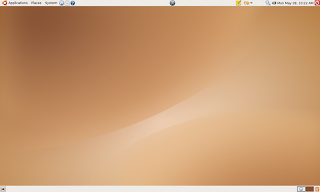
Unlike Windows, there are two panels. Windows has only one panel at the bottom of the screen. In Ubuntu Linux, the bottom panel has information about what programs you have running (in the taskbar) and lets you switch to different workspaces. The top panel has the menus, and quick launchers, the notification area, and the clock / calendar.

The bottom panel has a button on the left side to show the desktop. I never used this in Windows and I still don't use it in Ubuntu Linux, but I suppose that it could be useful.

The middle of the bottom panel has a taskbar listing all of your windows. Unlike Windows, it won't group them because most people don't like that behavior (although you can change this if you want).

The right side has a couple of rectangles representing virtual workspaces (sometimes called virtual desktops or just desktops). If you find that your desktop is becoming cluttered with too many windows, you can switch to a new workspace and start cleanly. If you want to move a window to another workspace, click on the window's representation in the small workspace box on the panel and drag it to another workspace, then drop it there. By default, only the windows on your workspace will appear in your taskbar. If you think you've lost a program, change to the other workspace. It's probably there.
You can change the number of workspaces by right-clicking on the workspace area and choosing "Preferences."

The rightmost icon on your bottom panel is the trash. When you delete stuff, it goes into the trash can. Left click on the can to look at the contents and recover something you accidentally deleted. To empty the trash and free disk space, right click on the trask icon and choose "Empty Trash."
The top panel has five components: The menus, the quick launchers, the "applets," lthe notification area, and the clock / calendar.

Unlike Windows, there are three menus. The "Applications" menu has all the programs divided strictly into categories. Most menu items have both the name of the application and the function, so figuring out what application does what is pretty easy. Very few Windows programs run on Linux, so try the default programs first. If you don't like them, click on "Add/Remove" to find more to install.
The "Places" menu has all the things you'd want to look for file in. If you bookmark folders in the file browser, they'll show up here, too, for easy access. You can also search for files here, though I'll suggest a better way in another blog. Finally, your recent documents will show up here, as well.
The "System" menu lets you change things about you computer, either for you or globally for anyone using your computer. "Preferences" are for you, while "Administration" is global. For safety reasons, all global changes require a password.

Any applications the you want quick access to can be added by right clicking on the menu item and choosing "Add this launcher to panel." Items already in the quick launch area can be removed by right clicking on the icon and choosing "Remove from Panel."
Ubuntu Linux comes with a lot of useful "toys" to make your life easier. Some of them are applicable to you and some aren't. Right click on a blank part of the top panel and choose "Add to Panel." A dialog will appear with a bunch to choose from. Many will have to be configured after you add them, because they need passwords, locales, or other information. Configure an applet by right clicking on it and choosing "Preferences." Ones that I use regularly in my day-to-day office life are: Tomboy Notes, Deskbar, and Dictionary Lookup. Remove an applet you no longer need by right clicking on the applet icon and choosing "Remove from Panel."

Running programs which want to keep you aware of something will put icons in the notification area. Examples include volume, Desktop Search, music players, and IM clients. When an orange square with a white diamond appears, it's time to update your computer.
The time is displayed in the top-right corner of your desktop. Left clicking on the clock will pull down a calendar for the month. Double clicking on a date on the calendar will bring up the personal information manager (Evolution), where you can schedule an appontment or reminder for that day. The format of the time and calendar can be changed by right clicking on the clock and choosing "Preferences."
The desktop will be blank when you start, but will quickly get cluttered because Firefox saves everything there by default. There are no program launchers, but you can add them if you want. Simply right click on a menu item and choose "Add Launcher to Desktop."
Changing the wallpaper is as easy as right clicking on the wallpaper.
First, let's take a look at your desktop. It should look like this:

Unlike Windows, there are two panels. Windows has only one panel at the bottom of the screen. In Ubuntu Linux, the bottom panel has information about what programs you have running (in the taskbar) and lets you switch to different workspaces. The top panel has the menus, and quick launchers, the notification area, and the clock / calendar.
The Bottom Panel
Show Desktop

The bottom panel has a button on the left side to show the desktop. I never used this in Windows and I still don't use it in Ubuntu Linux, but I suppose that it could be useful.
The Taskbar

The middle of the bottom panel has a taskbar listing all of your windows. Unlike Windows, it won't group them because most people don't like that behavior (although you can change this if you want).
The Workspace Area

The right side has a couple of rectangles representing virtual workspaces (sometimes called virtual desktops or just desktops). If you find that your desktop is becoming cluttered with too many windows, you can switch to a new workspace and start cleanly. If you want to move a window to another workspace, click on the window's representation in the small workspace box on the panel and drag it to another workspace, then drop it there. By default, only the windows on your workspace will appear in your taskbar. If you think you've lost a program, change to the other workspace. It's probably there.
You can change the number of workspaces by right-clicking on the workspace area and choosing "Preferences."
The Trash

The rightmost icon on your bottom panel is the trash. When you delete stuff, it goes into the trash can. Left click on the can to look at the contents and recover something you accidentally deleted. To empty the trash and free disk space, right click on the trask icon and choose "Empty Trash."
The Top Panel
The top panel has five components: The menus, the quick launchers, the "applets," lthe notification area, and the clock / calendar.
The Menus

Unlike Windows, there are three menus. The "Applications" menu has all the programs divided strictly into categories. Most menu items have both the name of the application and the function, so figuring out what application does what is pretty easy. Very few Windows programs run on Linux, so try the default programs first. If you don't like them, click on "Add/Remove" to find more to install.
The "Places" menu has all the things you'd want to look for file in. If you bookmark folders in the file browser, they'll show up here, too, for easy access. You can also search for files here, though I'll suggest a better way in another blog. Finally, your recent documents will show up here, as well.
The "System" menu lets you change things about you computer, either for you or globally for anyone using your computer. "Preferences" are for you, while "Administration" is global. For safety reasons, all global changes require a password.
The Quick Launchers

Any applications the you want quick access to can be added by right clicking on the menu item and choosing "Add this launcher to panel." Items already in the quick launch area can be removed by right clicking on the icon and choosing "Remove from Panel."
Applets

Ubuntu Linux comes with a lot of useful "toys" to make your life easier. Some of them are applicable to you and some aren't. Right click on a blank part of the top panel and choose "Add to Panel." A dialog will appear with a bunch to choose from. Many will have to be configured after you add them, because they need passwords, locales, or other information. Configure an applet by right clicking on it and choosing "Preferences." Ones that I use regularly in my day-to-day office life are: Tomboy Notes, Deskbar, and Dictionary Lookup. Remove an applet you no longer need by right clicking on the applet icon and choosing "Remove from Panel."
Notification Area

Running programs which want to keep you aware of something will put icons in the notification area. Examples include volume, Desktop Search, music players, and IM clients. When an orange square with a white diamond appears, it's time to update your computer.
The Time and Calendar

The time is displayed in the top-right corner of your desktop. Left clicking on the clock will pull down a calendar for the month. Double clicking on a date on the calendar will bring up the personal information manager (Evolution), where you can schedule an appontment or reminder for that day. The format of the time and calendar can be changed by right clicking on the clock and choosing "Preferences."
The Desktop
The desktop will be blank when you start, but will quickly get cluttered because Firefox saves everything there by default. There are no program launchers, but you can add them if you want. Simply right click on a menu item and choose "Add Launcher to Desktop."
Changing the wallpaper is as easy as right clicking on the wallpaper.
Subscribe to:
Posts (Atom)
Other I' Been to Ubuntu Stories
