Friday, April 24, 2009

The Big Picture: Timed Release Failures

Ubuntu DVD Case RenderImage by Andrew Mason via Flickr
Jaunty should be out today (this post is scheduled), and I think  this is a good time to talk about whether timed releases are a good idea. I'll put my opinion out here at the beginning and say that, from a project management standpoint, hard release schedules are really not the way to go. Let's look at Ubuntu 9.04 Jaunty as an example.

There's a giant bug in Brasero that doesn't let a user create a video CD or DVD. Brasero claims to have this function; it appears to have this function by virtue of there being a button for it; but attempts fail because it claims that it's not possible with the available plugins. This also breaks Totem VCD/DVD writing, one of the bullet points for this release. A fix is available and in a PPA, but it's apparently (as of T minus one day) not going to be included because of the package freeze. They can't test the package and get it included in the CD on time.

That leaves a choice: push the release back a couple of days, or ship with a major bug.

Canonical used to be a little more flexible with its shipments: 6.06LTS (Dapper Drake) was delayed two months because they wanted to hammer out a few bugs. About the time that 8.04LTS came out, though, Canonical became much more serious about the day they were to release on. Countdown clocks were part of the marketing effort, and if they're showing a release but one doesn't appear, that looks really bad for the project.

As a result, 8.04LTS (Hardy Heron) shipped with a bug which prevented F-Spot from launching a second time on AMD64. The first time worked, but a late change in mono left the default photo application for the OS segfaulting on startup when run the second time. It didn't get fixed for a couple of weeks. Ubuntu 9.04 (Jaunty Jackalope) will likely have a similar (but not quite as serious) bug in the shipping version because of Brasero.

There's the other side of the argument which says that there'll always be bugs and that you just need to ship, anyway, but that's why some bugs are called  "release critical" and you need to correct them if at all possible. That "posible" thing includes delaying the release for a week.

Timed releases are fine, but don't shoot yourself in the foot. Be flexible enough to put out a good product. You can't be taken seriously by real users if you ship non-functioning product regularly. That's the big picture.

Reblog this post [with Zemanta]

Thursday, April 23, 2009

Upgrade or Reinstall? How do you move from Intrepid to Jaunty?

Backup and Restore CenterImage via Wikipedia
Jaunty is a day or two away, and a lot of people will be upgrading. There are a bunch of ways to do this:
  1. Download the full CD or DVD and insert it into a running system to upgrade,
  2. Upgrade from the Update Manager,
  3. Wipe and reinstall using the full CD.
  4. Wipe and reinstall using a net install.
Which is best for you really depends on your system. If you have a lot of third-party repositories and/or packages, you run a much higher risk of borking during an upgrade, but you also will need to spend more time getting these back after the reinstall.

My preferred method is to back up my package lists and sources.list, reinstall using a net install, and install the previous packages using the lists I backed up. It works the best for me because I have a fast connection and I don't need to download any packages twice or burn any CDs. To do this:
  • Find a mirror of the netinst.iso installer.
  • Download the linux and inintrd.gz files.
  • Backup your package list to your user directory.
    • Use Synaptic and File > Save Markings, or
    • dpkg --get-selections > packages.txt
  • Copy your /etc/apt/sources.list to your user directory.
  • Backup your data to be safe.
  • Reboot.
  • At Grub, press ESC and enter the command prompt by hitting C.
  • Set your root partition. The command will vary. Most likely ...
    • If you are all in one partition on one disk, type root(hd0,0).
    • If you have a separate /home on the same disk, type root(hd0,1).
    • Other configurationws will vary. Disks start numbering at 0, and partitions do, too.
  • Set your kernel using kernel /path/to/linux. You can use tab completion. This path is the path on your partition, so it may be /home/user/linux or it may be /user/linux depending on whether you have a separate /home or not.
  • Set your initial ram disk using initrd /path/to/initrd.gz. Again, this will depend on your configuration.
  • Boot using the boot command.
  • Follow the easy to use Alternative installer. 
    • Set up the networking.
    • The installer will be downloaded.
    • Set up the system and partition.
    • Install the base system.
    • Choose additional packages using tasksel.
    • Downlaod and install the additional packages.
  • Reboot into your new system
  • Add your third-party repos back in from the backed-up sources.list, changing as necessary.
  • Load the packages.txt file
    • In Synaptic, using File > Read Markings and Apply, or
    • using dpkg --set-selections < packages.txt && sudo apt-get dselect-upgrade.
  •  Enjoy your new system.
For me, this is the safest and easiest method of upgrading your system. If you do it often enough, you can even make a preseed file and automate the whole process.
Reblog this post [with Zemanta]

Wednesday, April 22, 2009

Google SoC and Gnome

The results from the Google Summer of Code selection are out and Gnome got twenty-five projects. I'll cover the ones I think are interesting below.

Networking

Adrien Bustany will modify Tracker to search various on-line resources, such as Flickr, Facebook, and Google Docs. Speaking of GD, Thibault Saunier is going to add Google Docs support to Nautilus, allowing the user to treat the docs like local files. In conjuction with Bustany's work, this looks like a big win for Google Apps users (and I'm one). If you're interested in music and videos, Neil Loknath is integrating Banshee and the Telepathy communications framework to share music with your IM contacts and
Mike Urbanski is hooking heavy podcasting support into Miro and Banshee. Zhang Sen is linking Telepathy's Pipes with Gnome Sudoku to make multi-player gaming possible. This is another of the great uses for Telepathy. Finally, Simon Wenner is geolocation data for tasks in Getting Things Gnome.

Integration

Siegfried-Angel Gevatter Pujals is adding Zeitgeist into the new Gnome Shell, planned to be the default desktop for Gnome 3.0, due to be released in 2010. Zeitgeist gives people a time-based view of documents. Sam Thursfield will be integrating GConf into GTK+ to make using GConf keys easier, including using it from Glade. Ian Marcinkowski is moving e-mail into its own independent process, similar to what Telepathy has done for IM and voice/video. David Jordan is going to be adding hooks to windowing allowing applications to expose more information to the Gnome Shell. Florian Ludwig is going to try to use Pulse to make the data avialable at bugs.gnome.org a bit more useful and easier to visualize.

Beautification

Guillaume Béland is planning to convert Nibble to the Clutter OpenGL canvas and add animations, while Timothy Horton want to "blingify" Gnome games by
making Mines a 2.5D program with special effects.

Other Features


Rhythmbox is getting a contextual information pane thanks to John Iacona, while Paul Bellamy is making MTP and iPod sync work on the application.
F-Spot will finally get the ability to handle RAW images through Ruben Vermeersch's work. Gnome Shell doesn't have multiple monitor support yet, but Nathan Lo intends to change that, and Maxim Ermilov will help Gnome Shell developers using Seed by adding support for ECMAScript to the Anjuta IDE. Anjuta also gets Python integration from Ishan Chattopadhyaya.


There are some more projects, too. Take a look at the Gnome SoC page to find out more.


Reblog this post [with Zemanta]

Monday, April 20, 2009

Awful Nautilus / Brasero bug in Jaunty RC1

If you're running the RC of Jaunty, you probably noticed that your Nautilus-based desktop isn't showing today and that you can't browse files at all. Nautilus is loading the Brasero library (which is currently SEGFAULTing on startup, and crashing. The workaround is
sudo chmod a-r /usr/lib/nautilus/extensions-2.0/libnautilus-brasero-extension.so
That's all on one line if you see a line break. Brasero won't work, but it didn't before so there's no real loss, eh?
Reblog this post [with Zemanta]

Fix Your Crap 1: Want Tracker Support in Nautilus?

Nautilus ubuntuImage by gigasoft via Flickr
Open up your Ubuntu Hardy (or later version) file manager and press CTRL+F to start a search. You'll notice that it's slow and only searches by name. Sure, you've got the deskbar (unless you're using a recent version of Ubuntu) and can get Tracker full text search, but why wouldn't you want Tracker integrated with Nautilus? Well, it turns out that a lot of people didn't want it and the integration was stopped after Gutsy (what a bone-headed decision that was!). Don't bother trying to report this as a bug, even though the Nautilus project and the Tracker project both claim integration with each other -- it'll just be marked "Invalid" or "Won't fix." Wake up. Modern desktops have this kind of integration.

So what's a person to do? Are you going to run off to another Gnome distro which doesn't do this? You have the power of the source. Use the source, Luke! Fix your crap. It's an easy cut and paste job for you. Just open a terminal and paste the following in (I'll explain later what each part does):

sudo apt-get build-dep nautilus
sudo apt-get install build-essential libtrackerclient-dev \
libtracker-gtk-dev fakeroot
apt-get source -b nautilus
sudo dpkg -i libnautilus-extension*.deb nautilus*.deb
killall nautilus

You should now have a near-instant search via full-text Tracker. Have fun.

The explanation
  1. We're going to need to recompile nautilus, so we need to get the build dependencies for Naultilus. The first line does this automatically without having to work through everything manually.
  2. Since the Tracker dependencies weren't installed, we need to include those. We also need fakeroot since we don't want to build as root -- fakeroot is a package which keeps us from needing to use those priveledges while building the package. Build-essential makes sure that we have all the build tools installed. I normally have them, and I'm not sure whether you actually need to have this package on the second line or not (due to build-dep above), but it doesn't hurt to have it and I don't want anyone's build failing. The backslash in the middle of that line makes a carriage return possible without executing the command.
  3. We retrieve the source for Nautilus and automatically build it. Since Nautilus checks for Tracker during compilation, we don't need to mess with any compilation flags -- that's handled automatically.
  4. We install the new packages.
  5. We need to kill Nautilus to restart it.
Sometimes, changing your system to meet your needs is more difficult than this. I'll introduce you to one of those next week in Fix Your Crap 2.
Reblog this post [with Zemanta]

Sunday, April 19, 2009

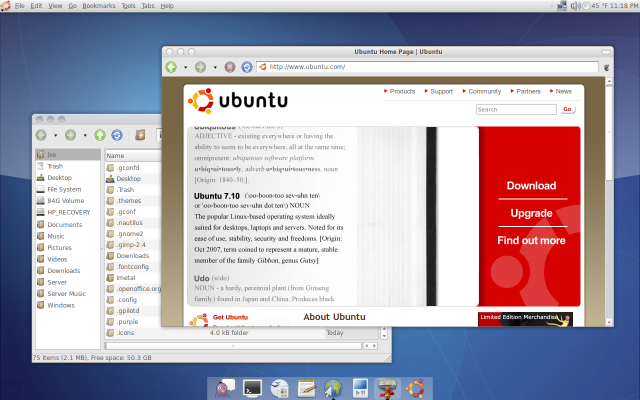
Getting that OS X Experience on Ubuntu 9.04 Jaunty is Simpler Than Ever

Apple ubuntuImage by gigasoft via Flickr
Before I start this article, let me say that I'm not a big "make your Ubuntu desktop look like a Mac" kind of guy. I don't use a dock. I don't have an Apple icon on my top panel. I pretty much use straight Gnome. I even like the spatial view someitmes.

There are plenty of people who want the Apple desktop experience, though, and I'm going to tell you how to get it. No, I don't mean pixel-perfect themes. I mean the stuff that counts. Usability. There are three main elements to Apple's usability on the basic desktop: a dock, menus on the top panel, and a launcher. Lucky for us, Ubuntu 9.04 Jaunty makes all these pretty easy.

Let's start with the launcher, which in OS X is called Quicksilver. In Ubuntu, we have a worthy competitor in GNOME Do. It's already in the repositories and at version 0.8.1.3. Installing just means clicking this link. When you are finished, Press ALT-F2 and type "gnome-do" or launch it from Applications > Accessories.

When the two-panel (and rather ugly) application appears, click on the arrow in the upper-right corner to open the Preferences box. In  the General tab, you'll want to set Gnome Do to start automatically and to hide on launch. Next, you need to enable some of the many plug-ins available for Do. Changing "Show: Official Plugins" to "Show:All Plugins" will give you many more choices. I suggest you enable the Tracker search, Google Apps, Flickr, micro-blogging (Twitter and Identi.ca), IM, browser, note, and music player plugins as a start. Some of these will require some configuration with user names and passwords.

Gnome Do appears with a press of the super or Windows key and the spacebar simultaneously. Instructions for using it are on the Gnome Do Wiki.

The next step in getting that OS X usability is to add a dock. Normally, people recommend Avant Window Navigator for this because it's quite a looker, but I'm going to recommend that you use the built-in dock in Gnome Do. You will need a compositing window manager in order to enable the dock. If you have Visual Effects enabled in Preferences > Appearance, then you are OK.

If you can't enable effects, you aren't out of luck yet. Metacity (Gnome's default window manager) can do compositing, though it's turned off by default. Hit Super-space to start Gnome Do and type "gconf-editor" and ENTER to launch the GConf editor. Under Apps > Metacity > General, put a check next to Compositing Manager and close the application.

To enable the dock, access the preferences in Gnome Do and change the theme to "Docky" in the Appearance tab. Bam! You're finished with the dock.

Another important aspect of OS X usability is the top menu, which conforms to Fisk's Law about where it should be placed. Personally, I have trouble getting used to it, but there's no doubt it's easier to hit than a menu on the window. Getting a top menu for GTK+ used to be the hardest part of this process, requiring patching and compiling, then later it was easier but required downloading and installing using force overwrite. These days, Gnome2-GlobalMenu has its own repository and is easy to set up. Add the following repository to Software Sources or manually in /etc/apt/sources.list

deb http://ppa.launchpad.net/globalmenu-team/ppa/ubuntu jaunty main
Download and add the key, then update and install gnome-globalmenu. Remove the menu and quick launchers on your top panel, right click and add the global menu and a normal ubuntu menu if you like.

Choose a theme like Dust Sand, and you're done. There's no real reason to move the traffic lights to the left, but you can if you want to by using the GConf editor and changing the "button Layout" under Apps > Metacity > General.


Reblog this post [with Zemanta]

Saturday, April 18, 2009

DRM's Ugly Head Rears Again

DefectiveByDesign.org iPodImage by GregoryH via Flickr
Average people just don't seem to learn when DRM shows how awful it can be. Yahoo!'s and Microsoft's music services were cancelled and their authorization servers were planned to be taken off-line. The suggested workaround? Burn the tracks to CD and rip them to a non-DRM format, losing cash, time, and a serious amount of fidelity in the process.

The biggest complaint I hear about moving to Gnome right now is that the person's iPod and previous iTunes purchases won't work. The iPod's DMCA-assured secret hasing and iTune's limit on moving older music purchases share a common trait: that's DRM locking you in. But that's all old news, isn't it?

The new news is not about music: it's about e-books. Same old nasty tasting poison -- different wrapper. Amazon controls how long you can read your Kindle books for. The details of the case in the link above aren't important. The banned customer may have abused a policy or he may not have. The result is the same: he not only loses his right to the returned books, but to all the books he legally purchased and didn't return. The message from Amazon is clear.

"All your book are belong to us." You don't own the books your bought, and Amazon can take them away time they are dissatisfied with you. You have no recourse.

Do yourself and the world a favor. Support open formats. Refuse to buy products which contain DRM. Let the vendors know they lost your sale. Use the non-DRMed products legally and within fair use guidelines.

Reblog this post [with Zemanta]

Other I' Been to Ubuntu Stories

Related Posts with Thumbnails