Mark Shuttleworth had talked about putting the application in the top panel for Ubuntu 10.10 UNR, and now the first mock-ups have arrived. In addition to that change, the status panel is gone and status messages are transient overlays a la Chrome Browser. Application-specific notification icons ("Windicators ... ahhhh) appear in the titlebar, which is now drawn by the application.
I think this is a lot of work. Ubuntu and Canonical haven't been big on diverging heavily from GNOME or Debian. Since GNOME is moving to Shell and the Mutter window manager, this appears to mean that Ubuntu will be forking. Do the Canonical devs have the dedication to make this happen? How buggy will the first version of this forked window manager be? Will the windicators (I grimace even writing it) provide true benefit.
That was the negative. Now for the positive. If Ubuntu sticks with panels and doesn't move to the GNOME Shell, I think it will be a good decision. Scrapping everyone's understanding of an interface and completely starting again will only hurt Ubuntu adoption where Canonical wants to make money -- the enterprise. As I've said in previous articles, "Don't change the UI." These indicator additions seem like smart and intuitive additions to the WIMP desktop model.
If Ubuntu diverges from GNOME (and probably Debian, since it rarely customizes upstream projects more than necessary) by ditching Mutter and the Shell, does it have the chops to keep up? For Canonical, that seems to be the $20,000 question.
See the full story from Mr. Shuttleworth here: Mark Shuttleworth: Window indicators (markshuttleworth.com)
Monday, May 3, 2010
Unscrewing Your Failed Ubuntu 10.04 Upgrade (a.k.a. "It's all my fault, honey!")
This isn't a blog post aimed at the general public -- it's for my gal who's twelve timezones away. I'm putting it on my blog because there may be other people in the same situation who could follow the directions. My older post complaining about the HP P1006 situation got a lot of hits, for example. Here goes.
What are you going to do?
I have lots of disk drives in the old media server that are as big as your desktop's hard disk. You can use any of those by opening the case and pulling one out. The ones with the red cables are better and newer than the ones with the wide, gray cables. Take the cable out with the drive, and look to see how it's connected. Be careful, though: don't bend any pins. Turn off your computer and open the case, then plug in the disk drive the way you saw it before. Close the case.
When you turn your computer on, Ubuntu will automatically recognize the drive, but it's not formatted correctly, so you'll have to do that. Go to Places > Computer, and double-click to check that it's the right one. It shouldn't be readable and Ubuntu should give you an error message. Right click on the drive and choose "Format." If that doesn't work for some reason, you can use System > Administration > Disk Utility to do it: choose "Format drive" in the top part and "Format volume" in the bottom part.
When you're finished, the drive should show up in Places > Computer and you can open it, then copy all your files to it. It may take hours to copy. You have a lot of stuff. When that's finished, click the little eject symbol next to the drive in the file manager, shut down, and disconnect the drive. You don't have to pull out the drive.
You can either write the image to a CD or use a USB key. I think the USB key is easier. You have the 2GB one, right? Put that in the computer and wait for it to register. Go to System > Administration > Startup Disk Creator. Choose the CD image and you USB drive (it'll probably be /dev/sdb1). You might need to erase the drive. Next, click "Make Startup Disk" and wait until the program finishes. While it's doing its work, you can shut down all your other programs. When the program is finished, reboot.
If the USB key doesn't work or you don't have one, you can write the CD iso file onto a CD. Put a blank one in the drive (I have blank ones in with the rest of the computer stuff), cancel anything the computer wants to do, find the CD image, right-click on the file, and choose "Write to CD." When it's finished, simply reboot.
During the boot screen, you need to press a button to enter the boot menu. The screen should tell you what button that is. It's normally F8 or F12. Choose your USB key in the menu and hit Enter.
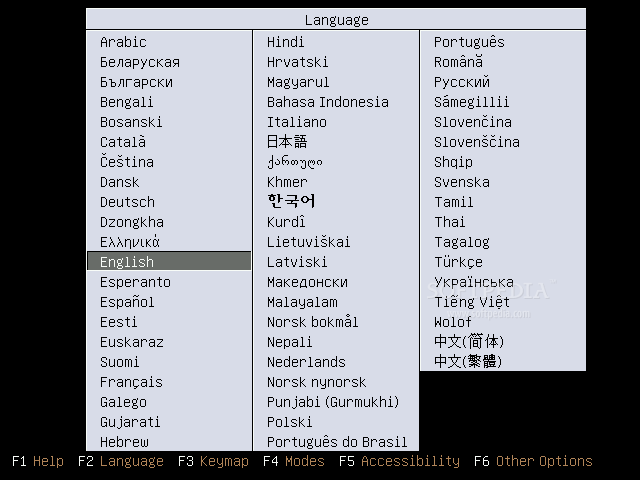
At Ubuntu's boot menu, you can choose either English or Thai, and choose to "try Ubuntu." You should boot into a full desktop. Double-click the install icon and start the installation process. Everything is pretty straightforward. I don't think you'll need any help, but if you do, here are the installation instructions.
Don't erase your drive! On the "Prepare disk space" page, choose "Manual," then choose your hard disk. This is where the directions get kind of complicated. There are two possible setups for your hard drive. I don't remember which one was used.
In your new system (with your old files), open Firefox. Go to the Ubuntu-Tweak.com website and click "Download Now!" Follow the instructions to install the application. Run the application from Applications > System Tools > Ubuntu Tweak. In the left panel of the application, there will be an entry called "Source Center." Click on it, then click the "Unlock" button. Put in your password. Don't worry about the warnings about third-party software in this case.
Choose the following by clicking on the check box.
Sometime during this, Ubuntu should have told you that new drivers were available to you and put a little computer card up next to the clock. Click on it and install the recommended NVidia driver. Now, you'll need to reboot.
When you restart, you can
Introduction
Hi, honey! Sorry I screwed up your machine. It's all my fault. I should have know that the upgrade wouldn't work after all the customization I'd put on the old system. You totally get Linux, though, so I know that you can follow these instructions to get your beautiful system back. The bad news is that I'm going to use a couple hours of your timie to unscrew what I screwed up. I know you'll still love me, anyway.What are you going to do?
Let's talk about the steps before we start, OK?
- Back up your data (just in case)
- Get rid of your strange application preferences
- Download Ubuntu 10.04 and write it to a blank CD or USB key.
- Install Ubuntu 10.04 without writing over your personal files (be really careful here!)
- Install Ubuntu Tweak to help you with getting all your old applications back
- Add the extra applications you need
Back up your data (just in case)
I have lots of disk drives in the old media server that are as big as your desktop's hard disk. You can use any of those by opening the case and pulling one out. The ones with the red cables are better and newer than the ones with the wide, gray cables. Take the cable out with the drive, and look to see how it's connected. Be careful, though: don't bend any pins. Turn off your computer and open the case, then plug in the disk drive the way you saw it before. Close the case.
When you turn your computer on, Ubuntu will automatically recognize the drive, but it's not formatted correctly, so you'll have to do that. Go to Places > Computer, and double-click to check that it's the right one. It shouldn't be readable and Ubuntu should give you an error message. Right click on the drive and choose "Format." If that doesn't work for some reason, you can use System > Administration > Disk Utility to do it: choose "Format drive" in the top part and "Format volume" in the bottom part.
When you're finished, the drive should show up in Places > Computer and you can open it, then copy all your files to it. It may take hours to copy. You have a lot of stuff. When that's finished, click the little eject symbol next to the drive in the file manager, shut down, and disconnect the drive. You don't have to pull out the drive.
Get rid of strange application preferences.
I don't want the newer desktop application versions to get confused by old configurations, so you need to delete them. Since you're an old DOS gal, I know you love the terminal. Open one up and type the following exactlygconftool --recursive-unset /The first, long dash is actually two dashes.
Download Ubuntu 10.04 and write it to a blank CD or USB key
Go to Ubuntu.com and click the "Download Ubuntu" button. On the new page, under "Begin Download," click on "Alternative Download Options." The "Other Download Otions" column has a "BitTorrent Download" link. Click that. On the next page, choose ubuntu-10.04-desktop-amd64.iso.torrent. I put the direct link here, too for you. Your BitTorrent client should download the CD in an hour or so.You can either write the image to a CD or use a USB key. I think the USB key is easier. You have the 2GB one, right? Put that in the computer and wait for it to register. Go to System > Administration > Startup Disk Creator. Choose the CD image and you USB drive (it'll probably be /dev/sdb1). You might need to erase the drive. Next, click "Make Startup Disk" and wait until the program finishes. While it's doing its work, you can shut down all your other programs. When the program is finished, reboot.
If the USB key doesn't work or you don't have one, you can write the CD iso file onto a CD. Put a blank one in the drive (I have blank ones in with the rest of the computer stuff), cancel anything the computer wants to do, find the CD image, right-click on the file, and choose "Write to CD." When it's finished, simply reboot.
During the boot screen, you need to press a button to enter the boot menu. The screen should tell you what button that is. It's normally F8 or F12. Choose your USB key in the menu and hit Enter.
Install Ubuntu 10.04 without writing over your personal files (be really careful here!)
At Ubuntu's boot menu, you can choose either English or Thai, and choose to "try Ubuntu." You should boot into a full desktop. Double-click the install icon and start the installation process. Everything is pretty straightforward. I don't think you'll need any help, but if you do, here are the installation instructions.
Don't erase your drive! On the "Prepare disk space" page, choose "Manual," then choose your hard disk. This is where the directions get kind of complicated. There are two possible setups for your hard drive. I don't remember which one was used.
- The first an most probable setup is that I used a separate paartition on the disk for your /home. I like to do that. When you look at the disk partitions in the Ubuntu installer, there will be one (/dev/sda1) that is around 20-30GB and another (probably /dev/sda2) that is 200+GB. If that is your situation, Click on the 20-30GB partition, select to edit it, choose to format the partition, and choose "/" as the mount point. Click "OK.' Next, choose the 200+GB partition, click to edit, make sure that "Format" is unchecked, and choose "/home" as the mount point. Click "OK." When you are finished, click "Forward."
- The second, less likely possibility is that there is one, big partition of around 230GB. In that case, choose the partition, lick to edit, make sure that "Format" is unchecked, and choose "/" as the mount point. Click "OK." The installer will warn you about deleting some folders. Don't worry.
Install Ubuntu Tweak to help you with getting all your old applications back
In your new system (with your old files), open Firefox. Go to the Ubuntu-Tweak.com website and click "Download Now!" Follow the instructions to install the application. Run the application from Applications > System Tools > Ubuntu Tweak. In the left panel of the application, there will be an entry called "Source Center." Click on it, then click the "Unlock" button. Put in your password. Don't worry about the warnings about third-party software in this case.
Choose the following by clicking on the check box.
- Adobe Flash PPA
- Chromium Browser Daily Builds
- Docky, Elementary Desktop PPA
- GNOME Global Menu PPA
- Medibuntu
- Nautilus Elementary PPA
- Skype
- Ubuntu Tweak Stable
- Ubuntu Wine Team PPA
Sometime during this, Ubuntu should have told you that new drivers were available to you and put a little computer card up next to the clock. Click on it and install the recommended NVidia driver. Now, you'll need to reboot.
When you restart, you can
- Start Docky (Appllications > Accessories > Docky),
- Remove the bottom panel,
- Remove the top menu (right click on the menu and click "Remove from panel")
- Add the menu button to the top panel (Right click on the panel and choose "Add to panel," then choose "Main menu.")
- Add the Global Menu to the top panel using a similar method as above.
Related articles by Zemanta
- Create Bootable Ubuntu 10.04 Installation Disk with Unetbootin (techie-buzz.com)
- Ubuntu 10.04 LTS Installation Guide (techie-buzz.com)
Labels:
Installation
Building43 Interviews Evan Prodromou, Founder of StatusNet
Status.Net is an open-source, federated microblogging platform which runs on about 20,000 sites, the most famous of which is Identi.ca. The service is generally API-compatible with Twitter and Status.Net servers can communicate with each other out of the box, as well as many other social sites like Tumblr and WordPress.com.
Building43.com is a RackSpace-sponsored site which aims to "bring together thought leaders in a variety of disciplines and organizations, from entrepreneurs to those responsible for the latest technologies. They will share knowledge, experiences and advice on how you can use these cool new tools and apps."
Labels:
identi.ca,
Pubsubhubbub,
Twitter
Sunday, May 2, 2010
Lead OGG Dev Responds to Jobs' Jabs
"All video codecs are covered by patents. A patent pool is being assembled to go after Theora and other “open source” codecs now. Unfortunately, just because something is open source, it doesn’t mean or guarantee that it doesn’t infringe on others patents. An open standard is different from being royalty free or open source.
Sigh. You've got to love Apple's self promotion. Gregory had this response on the Theora mailing list:Sent from my iPad"
It would seem both surprising and remarkably underhanded, even considering the probable involved parties, to undertake constructing a patent pool for some product without ever consulting the vendor of that product: Surely no good faith effort to construct a valid and usable patent pool for a codec could be undertaken without contacting the developers of the codec.
In particular— according to the US Department of Justice "A licensing scheme premised on invalid or expired intellectual property rights will not withstand antitrust scrutiny." So, even though it is apparent that the Xiph.org or its participants would have no interest in receiving royalties from such a pool a failure to contact the developers in an effort to determine the validity of any potential patent claim would be unconscionable.
Since the developers of Theora have received no such contact, I can only conclude that no such effort is being undertaken and that the quoted statement is either a forgery, the result of a misunderstanding, or that the statement may be indicative of a dishonest and anti-competitive collusion by Apple and other H.264 patent holders to interfere which the development, promotion, and utilization of unencumbered media standards.If you've read Gregory's
The specific standards process used to develop the MPEG codecs creates patent minefields that royalty-free codecs don't generally face. Because many knowledgeable people have heard of the problems faced by these patent-soup standards, they may extrapolate these risk to codecs developed under a different process where these problems are less considerable. This is a mistake, and I'll explain why here.
Recently there have been a number of prominent statements along the lines of "all video codecs are covered by patents" and "virtually all codecs are based on patented technology".
These statements are carefully engineered FUD spread by the license holders of competing formats in order to discourage the use of unencumbered alternatives. They are careful to avoid naming WHO owns these supposed patents or WHAT is actually patented, because such specific statements would allow the victims of this FUD to petition a court for a declaratory judgment of non-infringement.
This FUD is particularly effective because there _is_ a widespread misconception that media codecs are a patent minefield to a greater extent than other areas of software.
Certainly this is the case for the MPEG codecs, but it is not a universal truth. To understand why, you must understand a little about the process used to build these international standards.
The reason the MPEG formats are so thoroughly encumbered by patents is that the process used to build the formats is designed to be "blind" to patent considerations: all the participants have agreed that any patents they hold will be licensed under "Reasonable And Non-Discriminatory" terms, a term of art which few normal people would actually describe as all that reasonable or all that non-discriminatory, as RAND often means "quite expensive". With only that assurance in hand, they go about constructing their formats through an extensively political tournament process where proposals are made and encouraged to be combined.
So no effort is made to avoid patents, but it gets worse:
If you're a participant in this process, it is very important that some of your patented technology make it into the result: if it doesn't you'll end up having to pay the same royalties as the rest of the world, but if it does you can cross-license your patents with the other "winners" and completely avoid paying to use the resulting format.
So even if you're not looking to make a profit from your participation, you'll be sure to get some patents into the result so that you don't have to _pay_ for the result of your own labors.
As a result these formats end up rife with inconsequential or even detrimental patented techniques which could have _easily_ been avoided, as essential elements.
—— and this is the outcome when all of the parties are playing by the rules. For an in-depth analysis of the mess that patents are making of standardization, see: http://papers.ssrn.com/sol3/papers.cfm?abstract_id=1134000
It doesn't have to be this way. Most media coding patents are exceptionally narrow, as it's much cheaper and easier to obtain a very narrow patent. The fact that a patent can be trivially avoided— often by something as simple as changing the order of a process— isn't a problem for patents designed to read on standards, since the standard mandates doing it "just so".
By starting out with the premise that you want things to be royalty-free and not merely RAND, you remove the incentive structure that encourages the creation of minefields. By being cognizant of the risk and sticking close to the known safe prior art, rather than the willful patent entanglement of the MPEG process, the risk of surprise claims by third parties is also reduced.
The problem of patents isn't eliminated— they are still a costly burden on the developer of any standard, but the environment surrounding the MPEG patents is simply not a good indication of the real difficulty.
The process used by MPEG is ultimately counterproductive. By being "blind", what they are actually doing is encouraging a kind of patent cold war. At the end, even the inventors and fully paid-up licensees of those formats end up in court—fallout from playing with these dangerous toys. This can only be avoided by rejecting the taint of encumbered technology, and accepting the challenges and compromises that come from doing so. Or, in other words, the only way to win is not to play.Well, we certainly know where he stands on this matter. I hope he is correct, but I've got little faith in the patent system and even less in east Texas, where this fight will almost certainly be fought.
Labels:
Open standard,
Theora
Friday, April 30, 2010
Tinycore Linux and "On Demand" Computing
I've moved recently, and the only computer I've got working right now is my old Intel Classmate notebook. It's slow, but it works well for 95% of what I want to do, even if the keyboard is a little small for my giant claws. Anyway, I was running Ubuntu 10.04 Beta when the Xorg memory leak bug hit, and I used that as an excuse to try some stuff I'd been thinking about for a while.
I installed and tried Fedora 13 Beta for about a week. I got really hands on with it, and I have some pros and cons that I'll (hopefully) cover this weekend. I also tried Tinycore Linux, which some of you may never have heard of.
Tniycore is ... tiny: it's 10MB, which puts it right at the bottom of the "small Linux" distros. It's also very core. There are no apps. It boots to a minimal desktop (WM, built for Tinycore) with a small dock (Wbar), and nothing else. Oh, there's a terminal, a control panel, and an app installer (using FLTK). It feels very much more "then" than "now." Believe me, though, it boots fast. From my SD card, the desktop is fully functional in 3 seconds -- my SD card is slow.
By default, Tinycore boots into "cloud" mode, which is like a live CD, but it runs completely from memory. With only 10MB, you can understand that running in memory isn't a problem. You can also guess how blazingly fast it is. When you want to run an app, you open up the apllication installer, search and choose (many are availbale), and click "Install." The application(s) appear in your dock.
Everything continues to run completely in memory. Installing means downloading a TCZ package, which is really just an archive of the binary, along with a hash file and a dependency file. Dependencies are handled automatically. When the package is installed, the original files are deleted to make room in RAM. Starting an application is almost instantaneous, even for a big app like Firefox. Since the package format is so simple, even the newest software (like PCManFM2) is available. The simple package format also means that the application installation takes almost no time, even on my little netbook. Chrome Browser installs in about 1.5 seconds, for example.
You can also set Tinycore to run in another mode, called TCE. If you specify TCE mode on boot and give a location to save, Tinycore will save all your packages to that location so that you won't have to download them again. You can also set applications to be loaded automatically "on boot" or only when first launched, "on launch." Applications aren't permanently stored in the filesystem unless you go to real trouble to do it. They are always freshly installed, either at boot or at launch.
This completely original distribution takes a new approach to computing, and that is on demand. Imagine if my computer just PXE booted to Tinycore -- how fast would it be? With GbE Internet connections coming, and 10GbE after that, how much sense does it make to store my OS on my desktop. Network speeds eclipse most hard disk speeds, even now.
I can see putting up a server in my house for PXE booting a custom image of something like Tinycore, with apps set "on launch" on an NFS directory from the server. This is starting to sound a bit like LTSP (which is a great project I've deployed a couple of times), but everything here is local and running completely from memory. Applications will launch faster than their HD-bound cousins since the network is quicker than my HD.
Why do I say that? Let's look at what happened to me two nights ago. I installed Ubuntu 10.04 over the network, using just a kernel and initial ramdisk as a starting point. It's my favorite way to install when I have a decent connectiion. (I'll write about the experience soon). I download the base Ubuntu system (2 minutes) and installed it (10 minutes). Next, I downloaded the full desktop (6 minutes) and installed (2.5 hours!). This is on a 12Mb/s network with a 30GB netbook HD. Imagine the speed on 100Mb or even Gb Ethernet.
Where does this all end? SaaS, folks. It's coming. On demand computing will be here soon.
I installed and tried Fedora 13 Beta for about a week. I got really hands on with it, and I have some pros and cons that I'll (hopefully) cover this weekend. I also tried Tinycore Linux, which some of you may never have heard of.
Tniycore is ... tiny: it's 10MB, which puts it right at the bottom of the "small Linux" distros. It's also very core. There are no apps. It boots to a minimal desktop (WM, built for Tinycore) with a small dock (Wbar), and nothing else. Oh, there's a terminal, a control panel, and an app installer (using FLTK). It feels very much more "then" than "now." Believe me, though, it boots fast. From my SD card, the desktop is fully functional in 3 seconds -- my SD card is slow.
By default, Tinycore boots into "cloud" mode, which is like a live CD, but it runs completely from memory. With only 10MB, you can understand that running in memory isn't a problem. You can also guess how blazingly fast it is. When you want to run an app, you open up the apllication installer, search and choose (many are availbale), and click "Install." The application(s) appear in your dock.
Everything continues to run completely in memory. Installing means downloading a TCZ package, which is really just an archive of the binary, along with a hash file and a dependency file. Dependencies are handled automatically. When the package is installed, the original files are deleted to make room in RAM. Starting an application is almost instantaneous, even for a big app like Firefox. Since the package format is so simple, even the newest software (like PCManFM2) is available. The simple package format also means that the application installation takes almost no time, even on my little netbook. Chrome Browser installs in about 1.5 seconds, for example.
You can also set Tinycore to run in another mode, called TCE. If you specify TCE mode on boot and give a location to save, Tinycore will save all your packages to that location so that you won't have to download them again. You can also set applications to be loaded automatically "on boot" or only when first launched, "on launch." Applications aren't permanently stored in the filesystem unless you go to real trouble to do it. They are always freshly installed, either at boot or at launch.
This completely original distribution takes a new approach to computing, and that is on demand. Imagine if my computer just PXE booted to Tinycore -- how fast would it be? With GbE Internet connections coming, and 10GbE after that, how much sense does it make to store my OS on my desktop. Network speeds eclipse most hard disk speeds, even now.
I can see putting up a server in my house for PXE booting a custom image of something like Tinycore, with apps set "on launch" on an NFS directory from the server. This is starting to sound a bit like LTSP (which is a great project I've deployed a couple of times), but everything here is local and running completely from memory. Applications will launch faster than their HD-bound cousins since the network is quicker than my HD.
Why do I say that? Let's look at what happened to me two nights ago. I installed Ubuntu 10.04 over the network, using just a kernel and initial ramdisk as a starting point. It's my favorite way to install when I have a decent connectiion. (I'll write about the experience soon). I download the base Ubuntu system (2 minutes) and installed it (10 minutes). Next, I downloaded the full desktop (6 minutes) and installed (2.5 hours!). This is on a 12Mb/s network with a 30GB netbook HD. Imagine the speed on 100Mb or even Gb Ethernet.
Where does this all end? SaaS, folks. It's coming. On demand computing will be here soon.
Related articles by Zemanta
- Ubuntu 10.04 Lucid Lynx Hit By Major Memory Leak Problem (techie-buzz.com)
- Stéphane Graber: Last step before LTSP 5.2 (stgraber.org)
- My Thoughts on "Then and Now" (ibeentoubuntu.com)
- The Joy of Betas: Fedora 13 Beta Released Today (ostatic.com)
Saturday, April 24, 2010
My Thoughts on "Then and Now"
There's a meme appearing on Gnome Planet and Ubuntu Planet where people post their first Linux desktop and compare it to what they run now. I thought I'd put my two cents in. First, my first!
Red Hat 5.1, courtesy ToastyTech.com
It looks primitive, I agree, but let's compare it to what I was using before.
Windows 95, courtesy of AresLuna.org.
You know what? They weren't that different. Win95 had Plug'n'Play, but it worked so badkly that it shouldn't have been a feature of the OS. Memory was unprotected so the OS would hand for no reason whatsoever. Moving to RH5 seemed like a joy, once you got it set up. That was the painful part. Oh, and it supported like three pieces of consumer hardware, so I had to go out to buy a new, "real," modem. Netscape sucked, but so did IE.
Let's move forward to today, on my netbook:
There's a better theme, and the controls all moved (but that happened years ago with the move to GNOME 2). Still, there's not a lot different in the UI. It makes my point from last week -- don't change the UI. The core libraries, though are completely different. Applications can easily communicate, and there are standard libraries for things like communication, media, and document rendering. None of that was true of either RH5 or Win95.
Where's the competition?
Window 7, from blogcdn.com
Similar level of difference from Win95 to Win7 as from RH5 to Fedora 13, eh? (I thought about trying to get RHEL 5.5 and taking a screenshot just so I could say "From RH5 to RH5.5, but I didn't.") Again, there is some flash, and the internals have all been replaced (by NT!), but the basic UI isn't significantly different.
I thought we'd be further along by now. Where's my flying car? I guess I'll look to the smartphone market to see the changes I really want.
Related articles by Zemanta
Labels:
Operating system
An Open Letter to the Mozilla and Chrome Developers
- I'm tired of creating new accounts at every website on Earth. OpenID offers a way around this using OAuth, but I need to choose and type in my OpenID provider. My XMPP provider can be used as my OpenID provider (as OneSocialWeb does) and the browser will know my identity, making it easy to connect. The website I connect to will simply become my "friend." Of course, Mozilla and Chrome need to implement private browsing and profiles so that I can have several identities or even remain anonymous if I so choose.
- Once a website is in my XMPP contact list, I can give the site atomic permission to view only the parts of my profile and activities I choose, whether the limits be by network, group, individual, or other criteria. The access to this information is securely based on XMPP's permission system, which is robust. Much like Facebook's new permission system, websites can use this limited information to customize the site experience for me and give me more information about others I know who are also on the site. I could even delegate authority, for example, to edit a Flickr photo album of a party to one or two of my friends who were also at the party.
- The site could talk to me about things that I would find interesting. It could update me both in real time and on my OneSocialWeb news page about changes, what my friends liked, or whatever. Best of all, I could choose to deny the website access to my feed and simply ignore anything from the site.
- I could see my friends status updates, including ones that were private for me only, for groups, or for the public, and wouldn't need to rely on Twitter or Identi.ca (StatusNet) for that any more. Not to be a doom-sayer, but I don't think Twitter has enough of a business model that we should be programming it into our infrastructure. It's closed, to boot.
- I could do this kind of stuff without being tied to Facebook ... or GMail ... or Twitter ... or any particular provider. I or my company could even host a server. XMPP is federated, you see, and doesn't tie anyone down. OneSocialWeb doesn't say where your data needs to be stored (or kidnapped). I would have control of of my data. No one would own it or me.
- I could ditch the multiple IM logins I now have, but which I rarely use because of the pain they cause me. With Mozilla and Chrome users on board, It would be easy to communicate with any of my friends. I wouldn't need to create yet another account on yet another IM server, download a client (or configure a multi-client) and start talking. For my friends who don't have XMPP accounts, I could just recommend changing browsers (yours are better, anyway). Best of all, there would be no walled gardens. I could invite two friends who didn't know each other -- and who were previously on different IM networks -- to join a group chat with me, introducing them to each other. How novel is that?
- XMPP supports VOIP and video chat. My friends would no longer need Skype, yet another service I needed to sign up for and maintain.
- Mozilla and Google could use OneSocialWeb to increase their brand by offering logins to their own servers by default for new XMPP users in addition to allowing a simple user@server + password login for current XMPP users.
- Google and Mozilla are trying to do this stuff anyway, but at cross purposes. Google Buzz appears to be stillborn and Google is having trouble with getting privacy permissions correct. Mozilla Contact is working on connecting social networks people already use, much like Pidgin connects IM networks (i.e., not really). Why not use open standards, technology, and source code? Use OpenId, OAuth, and XMPP.
- Finally, it exists now. Servers and clients are available. Take the reference code from OneSocialWeb and adapt it to your browsers. It's less work than doing it from scratch.
Related articles by Zemanta
- Facebook Adopts Open Standard for User Logins (webmonkey.com)
- Forget Google Buzz -- Promote OneSocialWeb (ibeentoubuntu.com)
- XAuth, OAuth, and Yahoo! OpenID (developer.yahoo.net)
Subscribe to:
Posts (Atom)